Garia.Net
Administrator tools for admins by admins
- G-Scan: Admin – Hey look mom im on TV. (2 months ago)
Tools
G-Scan Fast disk analysis tool for admins 1.17.2 1023 KB
Overview
2.8 s
a full scan of a 1.82 TB drive
1,376,677
files read straight from the MFT
0.23%
from what Windows itself reports
1023 KB
one executable, no runtime, no install needed
G-Scan is built for speed: it reads a whole NTFS drive straight from its master file table instead of asking Windows for folder listings. Use it the way the job asks for, on the machine in front of you or one across the network.
| Interface | A web page on your own machine. Nothing is scanned until you choose a target, and nothing calls out by itself: About asks garia.net for a newer version only when you click. |
| Command line | gscan.com --scan C:\ --out c.json scans, writes JSON or CSV and exits with a code, for scripts and RMMs. gscan.exe "D:\data" opens the page on a scan; --ext and --find narrow the file list to certain extensions or names; --server, --agent, --show-key and --check-update do the rest. |
| Service | The agent runs as a Windows service. Open any machine that has it from your browser. |
| API | Every button is one HTTP call with JSON, for automation and third-party tools. |
| Deployment | An MSI with real properties for SCCM, Intune, GPO and NinjaOne, and ready-made NinjaOne scripts for a disk report, a low-space alert and CSV exports. |
Scans disks, folders, WSL, network shares and Linux over SSH
C:\ D:\data WSL \\SERVER\C$ \\NAS\share Z:\ user@host:/path
What you get
| Advice | What can go, with the gigabytes attached, and what to leave alone. |
| Explorer | Two panes, like Windows Explorer: a folder tree, and the contents of the open folder by size with each item’s share. Every folder level has its own colour on both sides. Delete a file or a whole folder with everything in it, from either pane, with a progress bar and a Stop button for the big ones. Driven by the keyboard. |
| Find files | Where is this. Across the scans you tick, by kind — photos, video, audio, documents, archives, installers — by extension, or by name with a * in it. Nothing is read, so it lists in seconds, and asking again is nearly free: the listing is remembered per scan. |
| Duplicates | In one scan or several: choose one or more kinds of file and the smallest size, same name or content alone. Confirmed by reading the files. |
| File types | Which kinds of file take the space. |
| Export | File types, files and advice as CSV from the page, or the whole result as JSON or CSV from the command line. |
| Map | A zoomable treemap. |
| Delete | Recycle Bin by default, system paths refused, everything logged with its size. The figures follow at once: in use drops by what was freed, and what went to the Recycle Bin is shown until you empty it. |
Without administrator rights it walks folders at about 175,000 files a second and reports what it could not read, instead of quietly showing less.
Screenshots
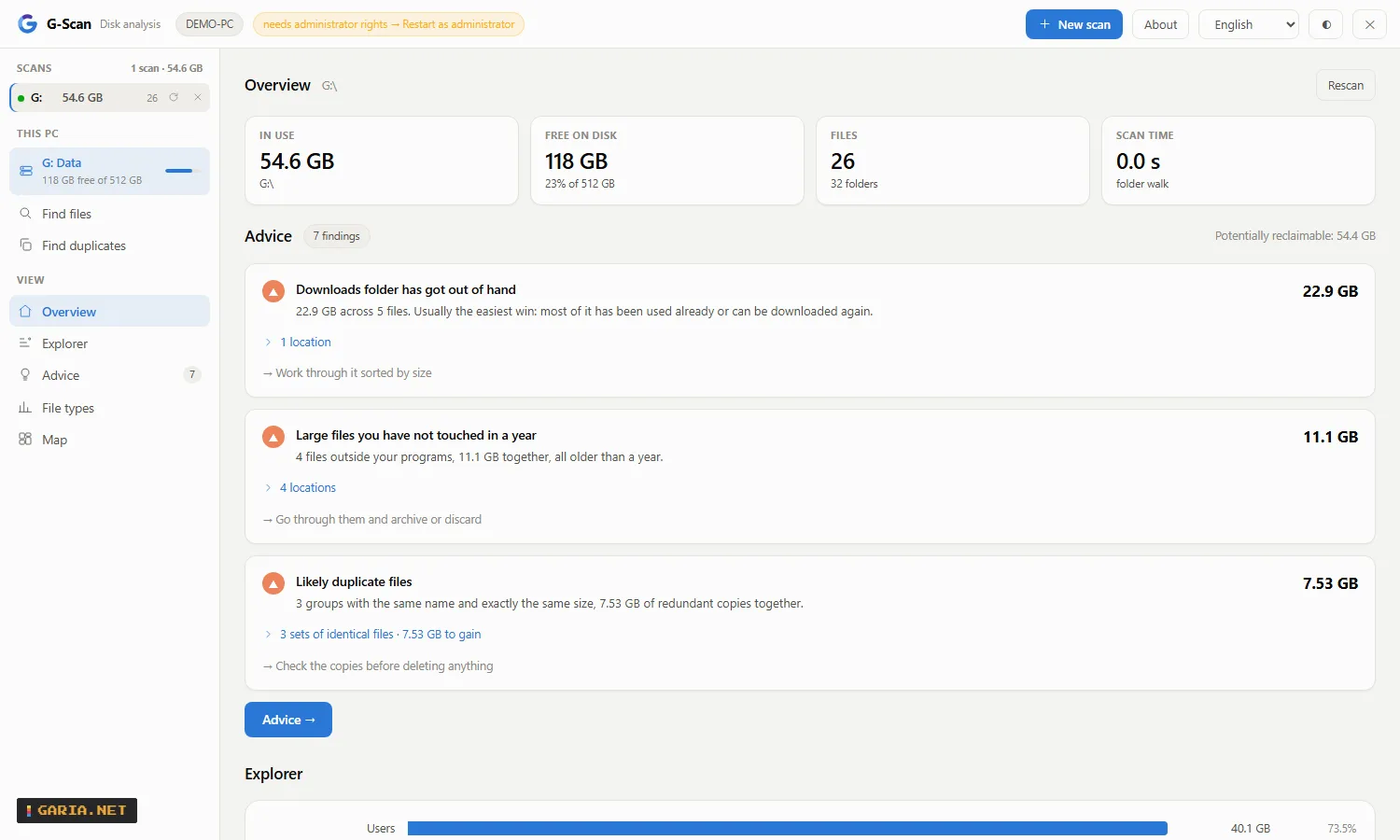
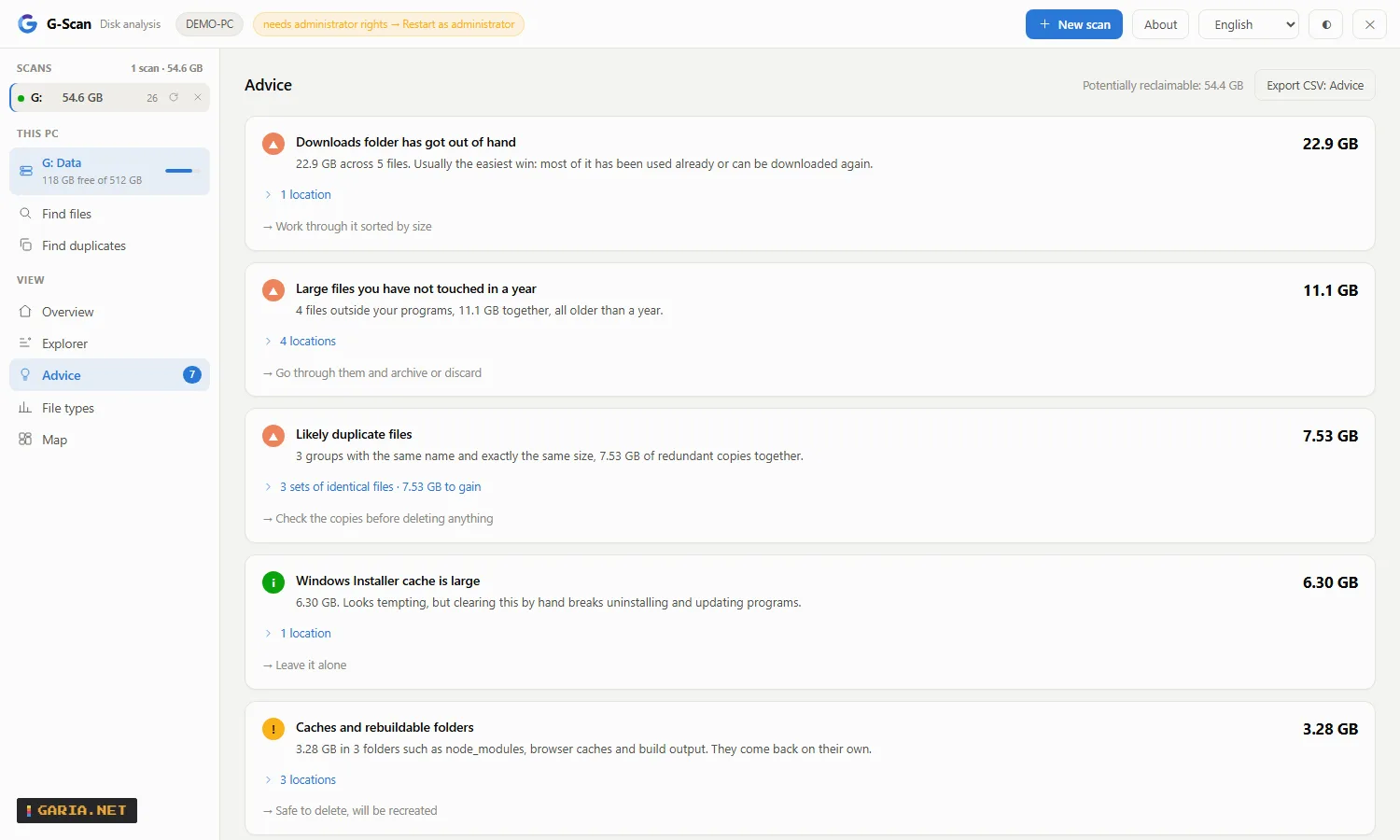
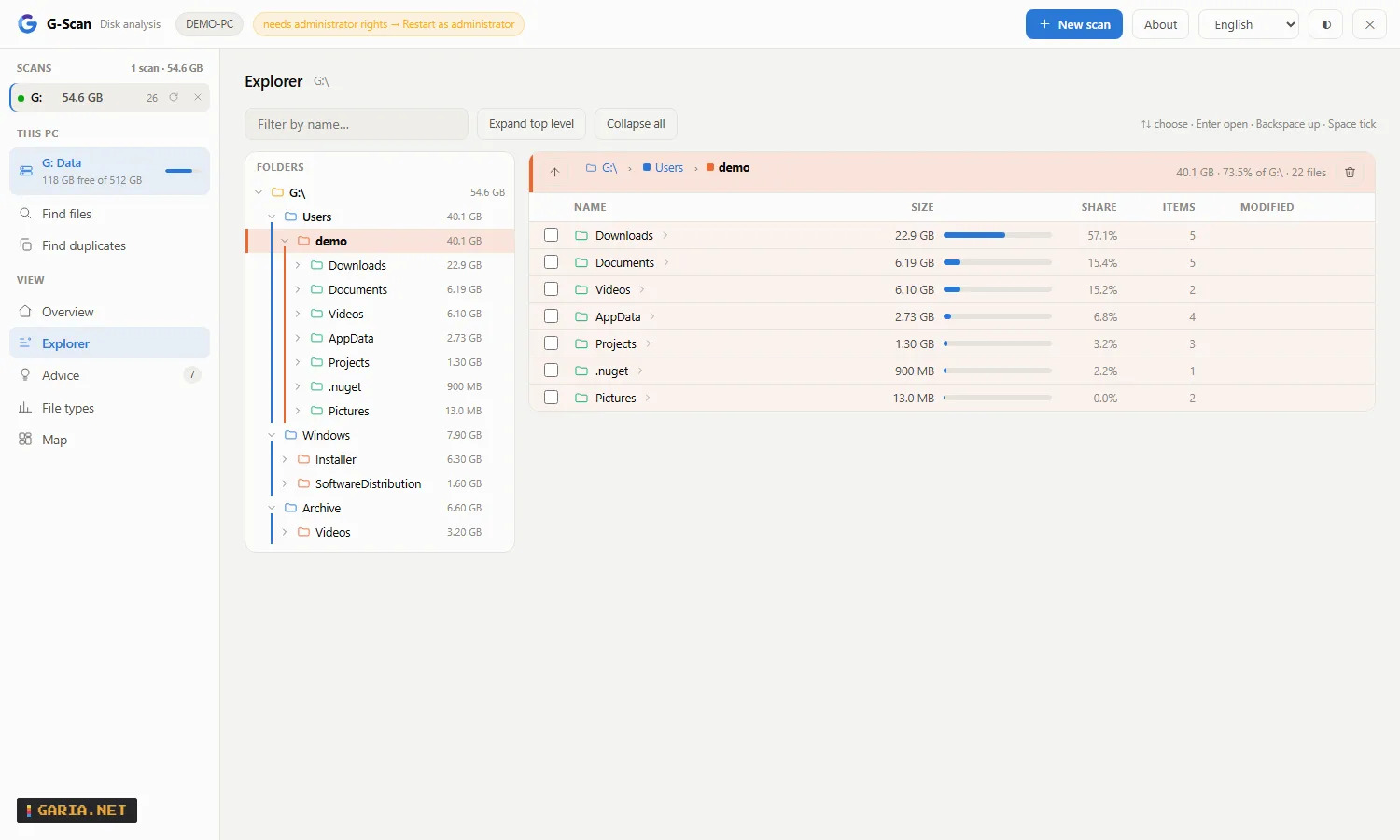
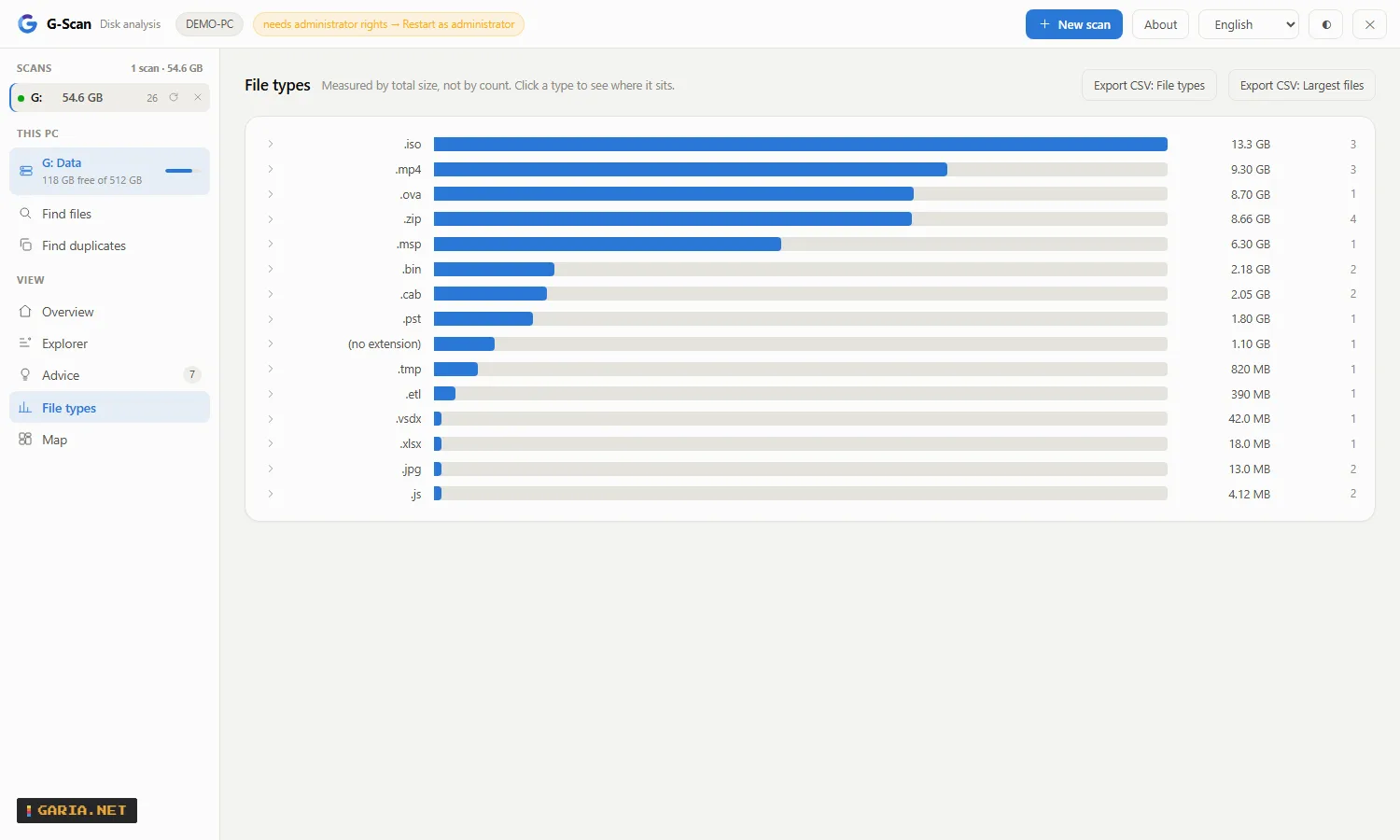
Examples
Scan a folder right away
gscan.exe "D:\data"Hand it to a user without installing anything
Copy gscan.exe to their machine and let them start it. As a standard user it walks folders and reports the part it could not read; one click on Restart as administrator switches to turbo mode.
One install for the whole team, on a jump host
gscan.exe --server --token <key> --port 8443Anyone on the network opens http://jumphost:8443/, enters the key once, and scans the host’s disks, any \\SERVER\C$, any NAS share and any Linux host, several at the same time. G-Scan does no TLS itself: keep it on a management network or put a reverse proxy in front.
An agent on a server you check every week
gscan.exe --agent --port 7777
gscan.exe --show-key
Export the file types of a folder to CSV
$gscan = "$env:ProgramFiles\GariaNetTools\G-Scan\gscan.com"
& $gscan --scan D:\data --out types.csv --what types
In a script or an RMM: scan, read the result, act on the exit code
[Console]::OutputEncoding = [Text.Encoding]::UTF8
$r = (& $gscan --scan C:\ --out -) -join "`n" | ConvertFrom-Json
if ($LASTEXITCODE -ne 0) { exit 1 }
$r.advice | Select-Object code, bytes
Use gscan.com, not gscan.exe: PowerShell does not wait for a program without a console. Exit code 0 is done, 1 the scan or writing failed (the reason is on standard error), 2 wrong arguments. The JSON is what /api/result returns, the CSV what /api/export returns. gscan.com --check-update asks garia.net for the latest version: exit code 0 up to date, 3 newer, 1 could not check.
Find every stray mailbox file on a drive
& $gscan --scan C:\ --ext ".pst .ost" --out mail.csv --what filesOr by name: --find "invoice*", where * is any run of characters, ? exactly one, a name with neither means contains, and a semicolon separates several patterns. Both drop the 50 MB threshold, so a small file is found too; the totals still count the whole drive. The same filter is Find files in the page.
Read the agent key straight into a script
$key = & "C:\Program Files\GariaNetTools\G-Scan\gscan.exe" --show-keyInstall (MSI)
Install options
An MSI with real properties, so it goes out through SCCM, Intune, GPO or NinjaOne without a wrapper script. Double-clicked it is a wizard; with /qn only the properties count. Per-machine, 64-bit, and uninstalling removes the service, the firewall rule, the shortcuts, the context menu and the registry keys.
Updating does not ask for a restart, and it keeps the choices of the previous installation unless you pass others. Anything still running from the installation folder is closed first, an agent included: the service through the service manager, and an agent started by a scheduled task or an RMM is closed and then started again with the command line it had. An agent running under an account of its own is closed but not restarted, because its credentials are not the installer’s to hold. What was closed and what came back is written to HKLM\Software\Garia.Net\G-Scan\LastUpdate.
msiexec /i G-Scan-1.17.2-x64.msi /qn
msiexec /x G-Scan-1.17.2-x64.msi /qn| Property | Default | Meaning |
|---|---|---|
| INSTALLFOLDER | %ProgramFiles%\GariaNetTools\G-Scan | Install location |
| UIPORT | 7666 | Port of the local web interface |
| AGENT | 0 | 1 installs the remote agent as a Windows service |
| AGENTPORT | 7777 | Port of the agent and of its firewall rule |
| TOKEN | — | Key for the agent; left out, the agent makes its own |
| CONTEXTMENU | 1 | Analyse with G-Scan on folders and drives |
| DESKTOPSHORTCUT | 0 | Shortcut on the desktop |
| ALWAYSADMIN | 0 | 1 always starts G-Scan as administrator |
| SERVICEACCOUNT | — | Account for the agent service; empty is LocalSystem |
| SERVICEPASSWORD | — | Password for that account; not needed for a gMSA |
Everything at once
msiexec /i G-Scan-1.17.2-x64.msi /qn ^
        INSTALLFOLDER="D:\Tools\G-Scan" ^
        UIPORT=8100 AGENT=1 AGENTPORT=8101 TOKEN=<key> ^
        CONTEXTMENU=1 DESKTOPSHORTCUT=0
The setup wizard, silently
G-Scan-1.17.2-setup.exe /VERYSILENT /DIR="D:\Tools\G-Scan" /PORT=8100 /AGENTPORT=8101
G-Scan-1.17.2-setup.exe /VERYSILENT /TASKS="desktopicon,contextmenu,agent"
The web interface listens on 127.0.0.1 only, so it needs no firewall rule. The agent’s rule is inbound TCP on AGENTPORT, private profile, local subnet, and only exists with AGENT=1.
Service account
Which account the agent runs as
By default the agent service runs as LocalSystem: it always works and it can read every file. Choose anything else with one thing in mind: an agent exists to read everything, and what an account cannot read is missing from the answer.
| SERVICEACCOUNT | When | Password |
|---|---|---|
| (empty) → LocalSystem | The default; always works | none |
| DOMAIN\svc_gscan$ | A fleet in AD: a gMSA in the local Administrators group | AD rotates it |
| DOMAIN\user | When it has to be a named account | yours to manage |
| NT SERVICE\GScanAgent | Only if you grant that SID the rights yourself | none |
msiexec /i G-Scan-1.17.2-x64.msi /qn AGENT=1 SERVICEACCOUNT="CONTOSO\svc_gscan$"The installer grants the account Log on as a service itself, and keeps SERVICEPASSWORD out of the installation log. A virtual account is low-privileged by design, so turbo mode is unavailable under it.
SYSTEM is not a superset of you. It reaches other machines as the computer account, so a UNC path you can open may be refused. Its SSH keys live in C:\Windows\System32\config\systemprofile\.ssh; a password with the scan avoids that. And what it deletes goes to SYSTEM’s recycle bin and log.
NinjaOne
Ready-made scripts for NinjaOne
Three PowerShell scripts that run G-Scan from NinjaOne without a browser, a port or a key. Paste one into the automation library, run it as System, and schedule it. None of them deletes anything, and they work the same from any other RMM or a scheduled task. They also ship in the installation folder under docs\ninjaone.
| Script | What it does | Exit code |
|---|---|---|
| GScan-DiskReport.ps1 | Scans a drive and fills custom fields: a summary, free space in percent, what a safe clean-up frees, and an HTML report of the largest folders and the findings | 0 filled, 1 scan failed |
| GScan-DiskAlert.ps1 | Checks free space first and only scans when it is low; the output then says where the space went | 0 fine, 1 low |
| GScan-Export.ps1 | Writes the largest files, the file types and the findings as CSV to a locked-down folder, optionally copied to a share | 0 written, 1 failed |
Custom fields for the report
| Field | Type | Holds |
|---|---|---|
| gscanSummary | Text | Used, free and safe clean-up in one line, with the largest folder |
| gscanFreePercent | Integer | Free space in percent |
| gscanCleanableGb | Decimal | Recycle Bin, temporary files and downloaded updates together |
| gscanReport | WYSIWYG | The largest folders with their share, and the findings |
Create the fields first and allow automations to write to them; other names go in as parameters. Every setting is a parameter with a sensible default, such as -Drive D:\ -MinFreePercent 15, or a script variable with the same name. Tested under Windows PowerShell 5.1 with a stand-in for NinjaOne’s field command, not yet inside NinjaOne itself: if a field stays empty, check its name, its type and whether automations may write to it.
API
Everything the interface does, from a script
Plain HTTP with JSON, no SDK. Every button in the page is one call, which makes G-Scan easy to build into automation and third-party tools. Against an agent, send the key as X-GScan-Token. The Postman collection has an example for every call, and it also ships in the installation folder under api.
A request that a browser marks as coming from another website gets 403 foreignOrigin, so a web page cannot use G-Scan behind your back; scripts, curl, PowerShell and Postman are not affected. On the machine itself, gscan.com --scan C:\ --out - returns the same result as /api/result without the web server.
# start a scan
$r = Invoke-RestMethod 'http://127.0.0.1:7666/api/scan' -Method Post `
     -Body @{ path = 'C:\'; kind = 'drive'; label = 'C:' }

# wait for it
do {
  Start-Sleep -Milliseconds 400
  $j = (Invoke-RestMethod 'http://127.0.0.1:7666/api/jobs') | Where-Object id -eq $r.id
} while ($j.state -eq 'scanning')

# the findings, as codes with numbers
$res = Invoke-RestMethod "http://127.0.0.1:7666/api/result?id=$($r.id)"
$res.advice | Select-Object code, bytes| Endpoint | Does |
|---|---|
| GET /api/hello | Is it there, does it want a key, may it be shut down |
| GET /api/targets | Drives, WSL, machine, version, whether turbo is available |
| GET /api/browse?p= | The folders inside a path, live, without a scan |
| POST /api/scan | Start a scan: path, kind, label; for SSH optionally password, for a network path optionally user and password |
| GET /api/jobs | Every scan with its progress |
| GET /api/cancel?id= | Stop a running scan |
| GET /api/result?id= | The outcome: tree, largest files, types, advice |
| GET /api/dirs?id=&p= | Any folder at any depth, with totals |
| GET /api/files?p= | The files in one folder, live from disk |
| GET /api/ext?id=&e= | Where one file type sits, and its largest files |
| GET /api/export?id=&what= | CSV of types, files or advice |
| POST /api/delete | Delete, with dryrun=1 first; the scan follows at once, with what was freed and what went to the Recycle Bin |
| GET /api/delete/progress | How far a running delete is: files and bytes gone and found, and the folder it is in |
| POST /api/delete/cancel | Stop a running delete; what is gone stays gone |
| POST /api/emptybin | Empty the Recycle Bin of one drive (drive, required), report what it freed, and update the scans of that drive |
| POST /api/cleanup | Empty the folders of one finding: temp files or Windows updates |
| GET /api/verifydups?id= | Confirm suspected duplicates by reading them |
| POST /api/dupsacross | Find duplicates: scans (ids), extensions (exts), smallest size (min), same name (names); GET for progress and the result |
| POST /api/findfiles | Find files: scans (ids), extensions (exts), name patterns (names), smallest size (min), sort; returns at once |
| GET /api/findfiles | Its progress, or the files it found with the choices it ran with. The listing is remembered per scan, so a narrower question is answered without reading the disk again |
| GET /api/reveal?p= | Open Windows Explorer there, on that machine |
| GET /api/forget?id= | Drop a result and free its memory |
| POST /api/elevate | Restart with administrator rights, local only |
| POST /api/quit | Shut down; an agent refuses |
| POST /api/update | Ask garia.net whether there is a newer version; only when called |
A Linux host over SSH, with a password
curl -s -H "X-GScan-Token: $KEY" -X POST \
  -d "kind=ssh" -d "label=web01 /var" \
  --data-urlencode "path=admin@web01:/var" \
  --data-urlencode "password=$SSH_PW" \
  http://server:7777/api/scan
The password reaches ssh.exe through askpass, not its command line, and is not kept with the scan. Findings come back as codes such as recyclebin, tempfiles and duplicates, so a script can set thresholds without parsing sentences.
Changelog
1.17.2 – 30 September 2026
Deleting shows its progress and can be stopped. Deleting a large folder, especially on a network share, could take minutes without any sign of life. The delete window now shows a progress bar with files and bytes, the folder it is in, and a Stop button. What is already deleted when you stop stays deleted; the rest stays where it is.
Faster deleting on network shares. Permanent deletes and deletes on network paths are done by G-Scan itself: one pass over the folder instead of two, and up to eight files at a time. 4,000 files on a NAS took 20 seconds, against 74 seconds one at a time. Read-only files and paths longer than 260 characters are handled; links to folders are removed, never followed. Moving to the Recycle Bin on a local drive still goes through Windows.
New API calls: GET /api/delete/progress and POST /api/delete/cancel.
Fixed: the explorer header showed the word "null" at the top level of a scan.
1.17.1 – 30 September 2026
New: delete a whole folder from the explorer. The folder you are in now has a delete button at the right of its header, and every folder in the folder tree shows one when you point at it. Both open the usual delete window, with the Recycle Bin or permanent choice, and delete the folder with everything in it. Afterwards the explorer moves up to the parent folder.
1.17.0 – 29 September 2026
Fixed: mapped network drives were missing when G-Scan ran as administrator. Windows gives an elevated program its own sign-in session, without the drive letters mapped in Explorer, so they were absent from the drive list and could not be typed as a path either. G-Scan now reconnects them itself, for its own process only, with the credentials Windows has saved for that server.
New: sign in to a network path. The Network tab has optional user name and password
fields, for a server whose credentials are not saved in Windows. They are used for that
connection only and are not stored. A mapped drive that cannot be connected shows in the
drive list with the reason, and a click opens the sign-in. POST /api/scan accepts user
and password for network paths.
Download
Release 1.17.2
30 Sep 2026 · Windows x64 · no .NET · no VC++ runtime · EN NL FR ES PT
SHA-256 .msi 1034832c5b6f35ffb54317856c0fef1cdab48e8929449877bbb06cceee4d7af0
SHA-256 .exe 84ef7ab32e5847e6816e099edb0c40c4715ba94cce9ca54dbff6d004a5ac0dbd
Words about G-Scan
Be civilNo linksOne line, 140 charactersChecked before it appears
Hey look mom im on TV.
G-Log Web server log analysis for admins 1.7.3 3.5 MB
Overview
1.7 s
from a 10 GB log to a full report
42,600,000
lines read, all questions at the same time
11
chapters, from traffic to security, and the advice
3.5 MB
one executable, no runtime, no install needed
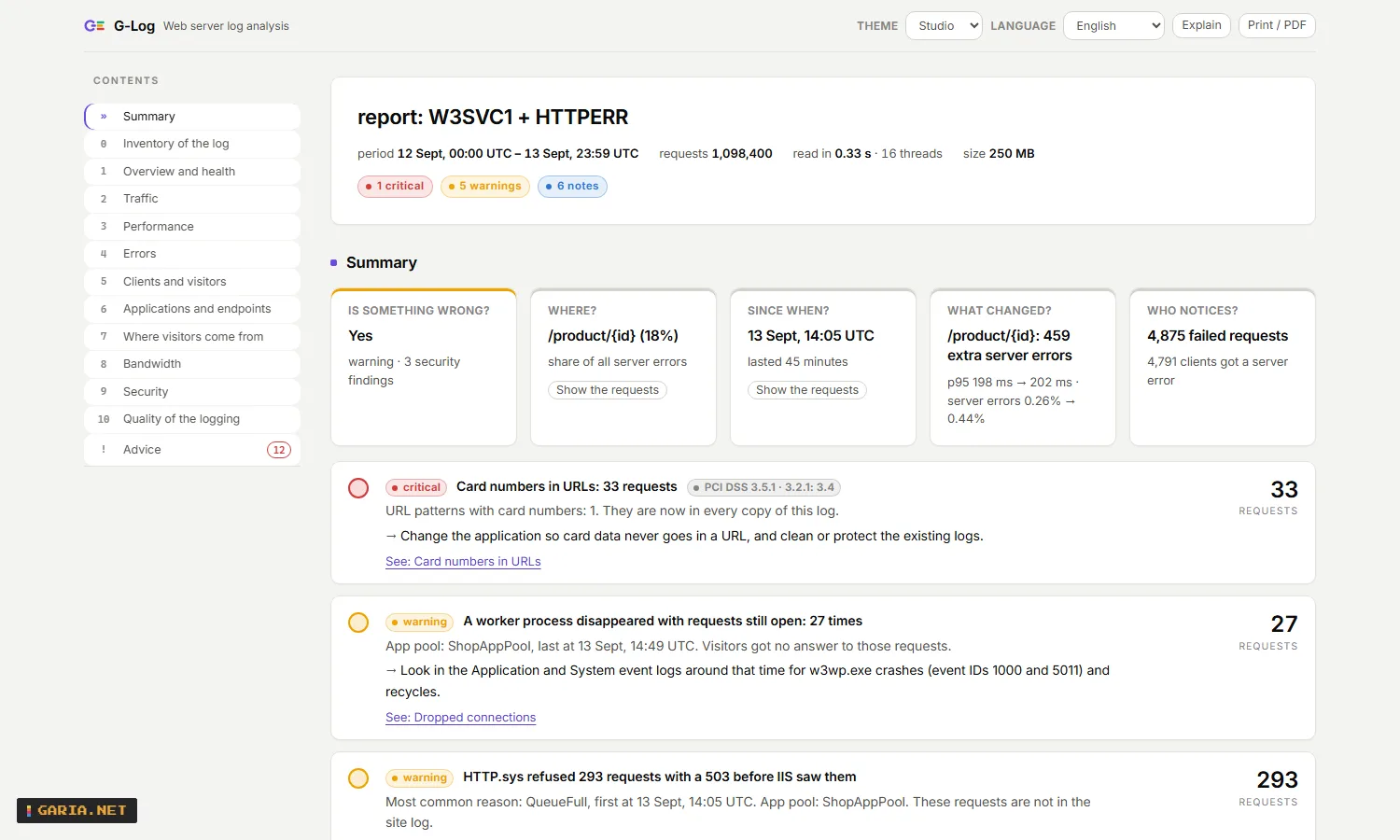
G-Log turns web server logs into an answer. Point it at a folder, a share or an SSH path: it reads the logs once and hands back one self-contained page – is something wrong, where, since when, what changed and who notices. IIS and HTTP.sys, ASP.NET Core, Apache and nginx, packed or not.
Standalone on one server, or an agent on each with a G-Log server in front. Every function is also a command, a REST call and an MCP tool, and NinjaOne fills its custom fields for one machine or for all of them. Version 1.7.3, 2026-09-24.
| Report | One HTML page that stands on its own, laid out like an application: a sidebar that marks the chapter you are reading, every finding with its figure beside it, and the explanations switched off in one click once you know your way around. In English, Dutch, French, Spanish and Portuguese. The same report as JSON for a script, as CSV for a spreadsheet, or as a plain-English summary for an alert. |
| Command line | glog.com --report C:\inetpub\logs\LogFiles\W3SVC1 --out report.html. Exit code 3 when there is a finding of the severity you choose, so a scheduled task or an RMM can act on it. |
| Search | glog.com --search <folder> "status:5xx url:/api/* from:07:00 to:07:20" gives the requests themselves, with file and line number, as text, JSON or CSV. |
| AI assistant | glog --mcp is a Model Context Protocol server over standard input and output, and a server offers the same tools over HTTP: an assistant asks the same questions and gets the same numbers as the page. |
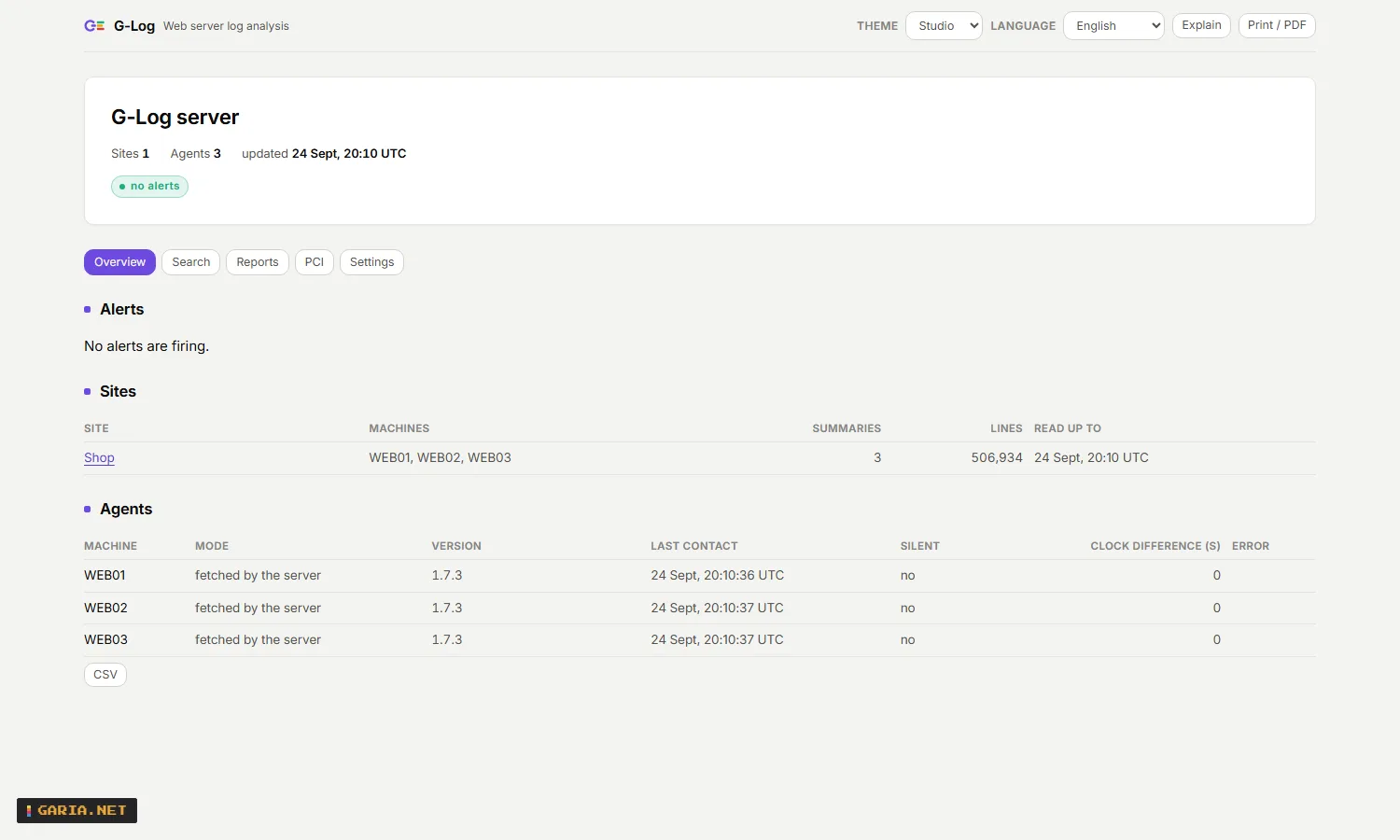
| A cluster | An agent on each web server summarises its own logs; a server collects those and shows every site in one page, with alerts, search and reports on a schedule. The log lines stay where they are. |
| Settings | Every setting on one screen (glog --config), each with a line saying what it does – and the same twenty-four from the command line and the API, so nothing is out of reach of a script. |
| Deployment | An MSI with real properties for SCCM, Intune, GPO and NinjaOne, ready-made NinjaOne scripts, and a NinjaOne connection that fills the custom fields of every web server by itself. |
Reads IIS, ASP.NET Core, Apache and nginx, packed or not
u_ex*.log w3clog*.txt access.log access.log.1 *.gz *.zip httperr*.log \\SERVER\logs$ ssh://user@web03/var/log/nginx
The usual shapes are recognised by themselves, including nginx logs written as JSON. Wrote your own log_format or LogFormat? Hand G-Log that line, or the configuration file it stands in, with --log-format.
What you get
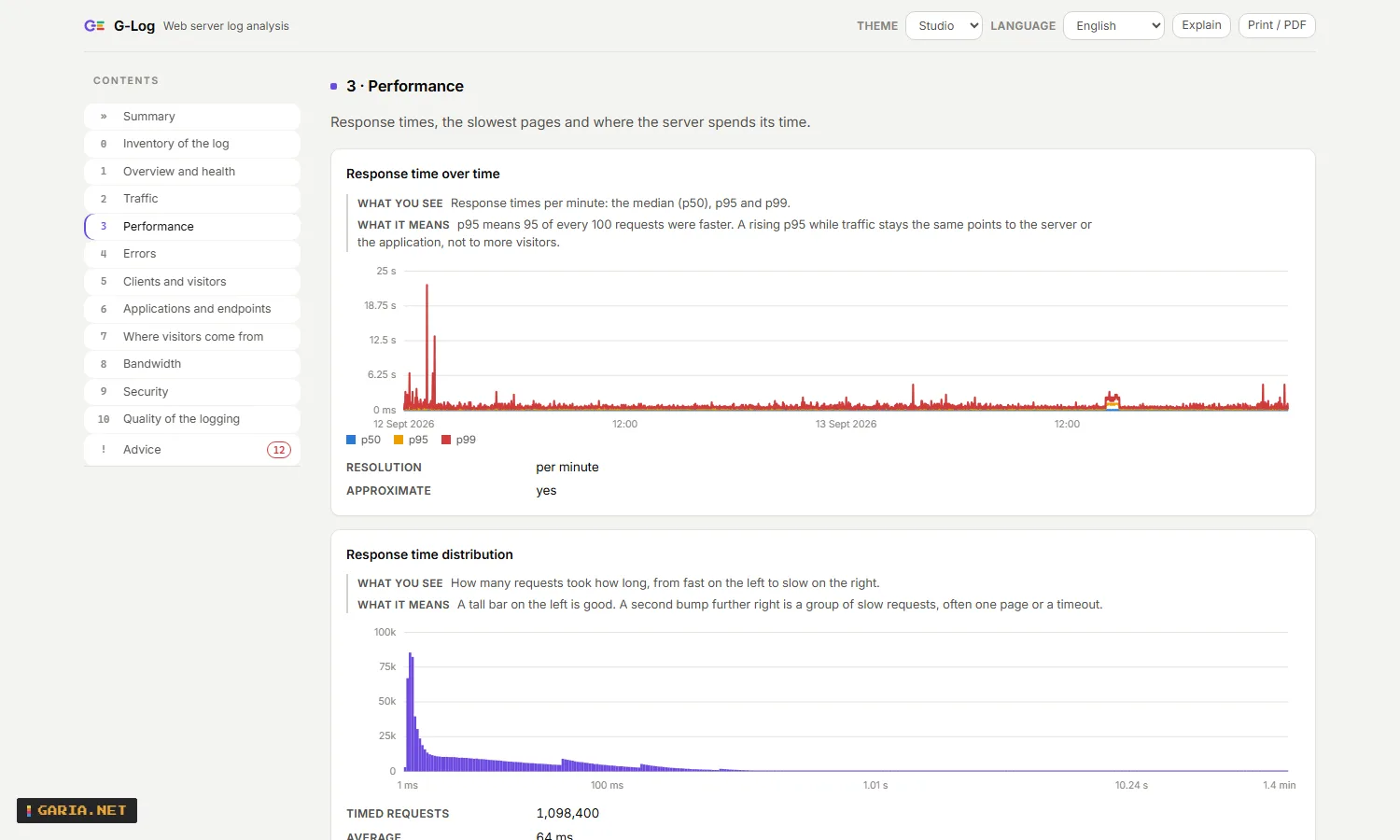
| Five questions | Is something wrong, where, since when, what changed and who notices – each with the answer measured from the log. |
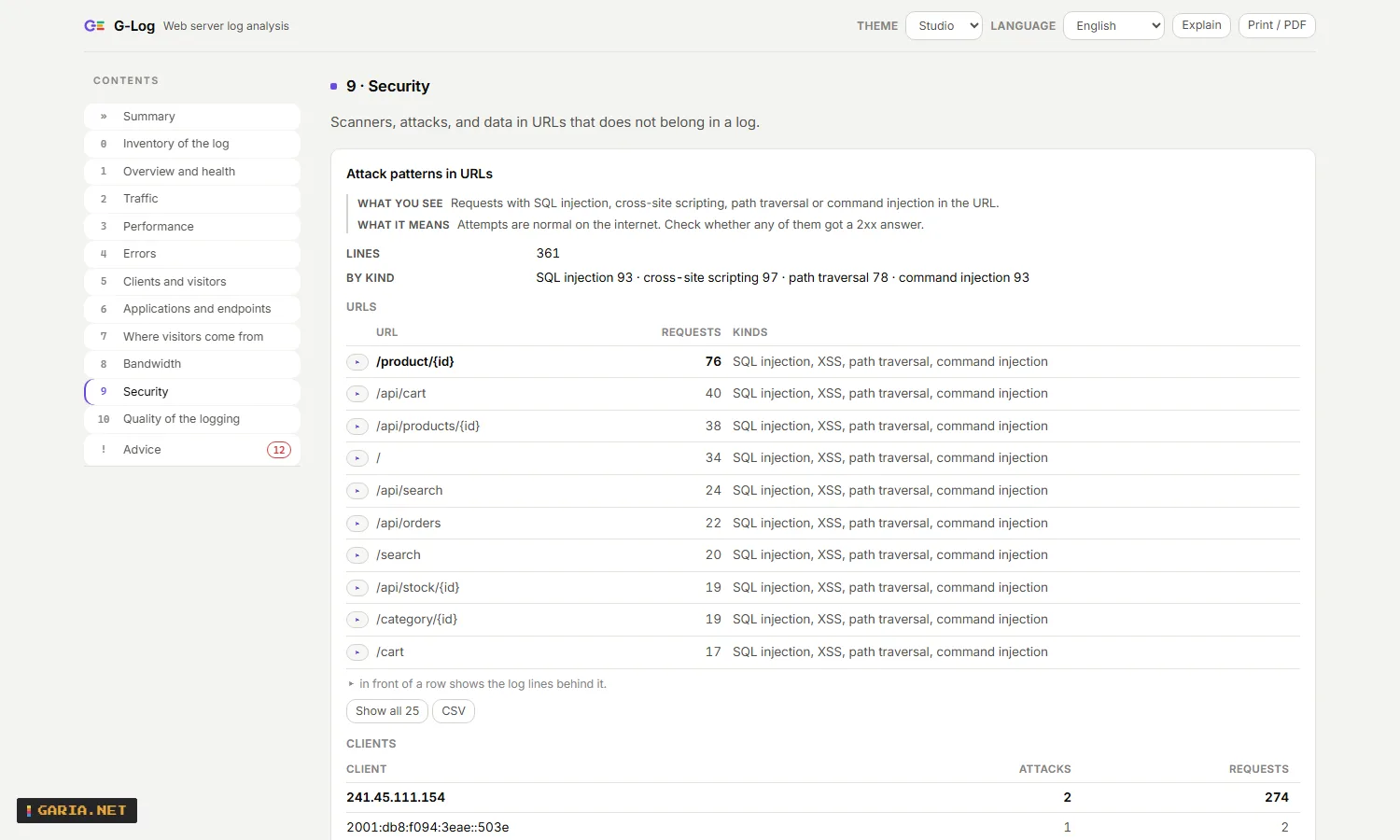
| Advice | 36 kinds of finding, most severe first, with the numbers, what it means and what to do. Card numbers in URLs carry their PCI DSS requirement. |
| The log lines | Next to a row with errors, a slow page or a security finding, one click opens the lines from the log itself: file, line number, and every field by name. |
| Two periods | --compare with yesterday or the week before a deploy: what got slower, which errors and endpoints are new. |
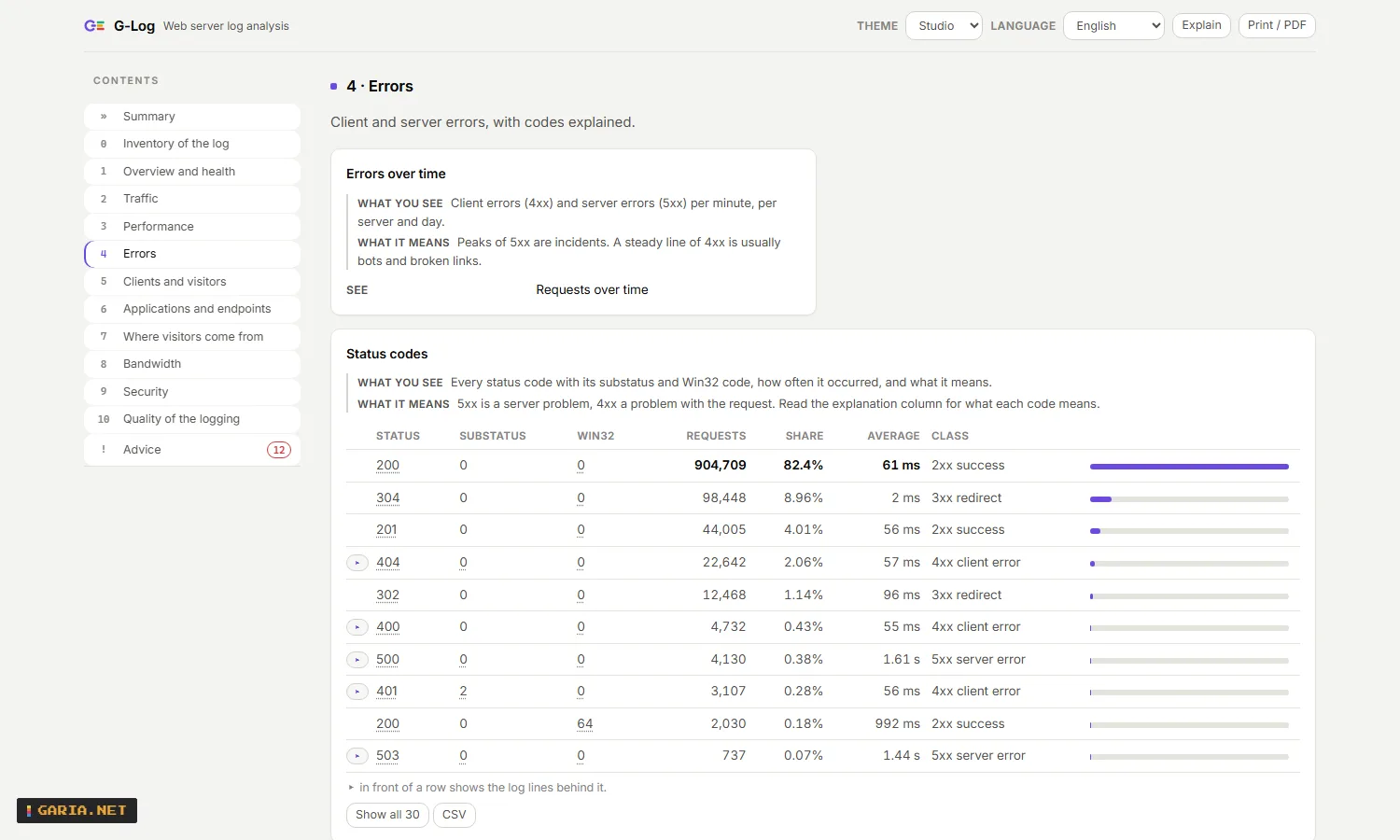
| Honest gaps | An analysis that the log cannot support says why, and chapter 0 says which field to turn on and how – instead of showing an empty table. |
| Export | JSON, CSV per table (also from the page), and a plain-English summary. Every number in the page comes from the same report. |
G-Log only reads. It opens log files so the web server can keep writing, rotating and deleting them while it reads, and it changes no setting on your web server – not the logging fields, not the rollover, not the ETW destination. Reading a log installs nothing and opens no port; a service and a port come in only when you choose to run the agent or the server for a cluster, and then you say so yourself.
Screenshots
Examples
The report of a site, in the browser
glog.exe --open
glog.exe --open C:\inetpub\logs\LogFiles\W3SVC1
Without a path it reads the logs of this machine: the IIS sites it finds by itself, with the HTTP.sys error log next to them. Or right-click a log folder, a .log, a .gz or a .zip and choose Analyse with G-Log.
A site together with the HTTP.sys error log, and yesterday next to it
glog.com --report C:\inetpub\logs\LogFiles\W3SVC1 --report C:\Windows\System32\LogFiles\HTTPERR ^
         --compare C:\inetpub\logs\LogFiles\W3SVC1\u_ex260912.log --out today.html
The requests behind an incident
glog.com --search C:\inetpub\logs\LogFiles\W3SVC1 "status:5xx from:2026-09-11T10:00 to:2026-09-11T10:29"
glog.com --search C:\inetpub\logs\LogFiles\W3SVC1 "client:10.51.141.11" --format csv --out client.csv
In a script or an RMM: the last 15 minutes, as an alert text
$glog = "$env:ProgramFiles\GariaNetTools\G-Log\glog.com"
& $glog --report C:\inetpub\logs\LogFiles --since 15m --format text --fail-on warning
if ($LASTEXITCODE -eq 3) { exit 1 }
Use glog.com, not glog.exe: it waits for the analysis and passes the exit code on. Only the lines of that window are read, and log files last written before it are skipped, so a folder with months of logs costs no more than today’s file.
One table for a spreadsheet or a ticket
glog.com --report C:\inetpub\logs\LogFiles\W3SVC1 --tables
glog.com --report C:\inetpub\logs\LogFiles\W3SVC1 --format csv --table errors.statusCodes --out status.csv
Install (MSI)
One MSI, per machine, 64-bit, nothing else needed: the report page is a resource inside glog.exe and the runtime is compiled in. It goes out through GPO, Intune, SCCM or an RMM without a wrapper script.
msiexec /i G-Log-1.7.3-x64.msi /qn
msiexec /x G-Log-1.7.3-x64.msi /qn
ADDTOPATH | 1 (default) or 0 – the installation folder in the system PATH, so glog works in every new command prompt |
CONTEXTMENU | 1 (default) or 0 – Analyse with G-Log on folders and .log, .gz and .zip files |
MASKSENSITIVE | 0 (default) or 1 – client addresses, user names, passwords, tokens and card numbers masked in every report |
SETTINGSUI | 1 (default) or 0 – G-Log settings in the Start menu: the screen behind glog --config |
INSTALLFOLDER | another folder, default C:\Program Files\GariaNetTools\G-Log |
msiexec /i G-Log-1.7.3-x64.msi /qn ADDTOPATH=1 CONTEXTMENU=0 MASKSENSITIVE=1 INSTALLFOLDER="D:\Tools\G-Log"
G-Log-1.7.3-setup.exe /VERYSILENT
An update never needs a restart. Whatever is running from the installation folder steps aside first – the services, and an agent or server that is not a service: a scheduled task, an RMM, a window someone left open. They carry a hidden window so Windows can ask them to close the way it asks any other program, and the installer starts again what it stopped. An agent that ran under its own account is not put back, because its credentials are not kept anywhere; that is written to the registry under LastUpdate so you can see why it is standing still.
G-Log never checks for updates by itself. Ask it and it answers: glog --check-update gives exit code 0 up to date, 3 when there is a newer version, and 1 when garia.net could not be reached – so an RMM can put a condition on it. Nothing about the machine goes with that question.
Start the MSI from a local folder such as C:\Temp. On many work computers Downloads lives on a network share or in OneDrive, where the Windows Installer service cannot read it: that ends in error 1619 without installing anything. Read access to the log folders is all G-Log needs; it does not have to be an administrator.
Rolling out the agent and the server, the rights they need, which fields to log in IIS, and what to do about a log folder on a share: the administrator guide walks through it. It is installed as well, under docs.
Settings
Everything G-Log runs on is one list of twenty-four settings, reachable three ways: a screen, the command line and the API. Whatever you can do in one, you can do in the others – a screen that hides things from a script is a screen that has to be worked around.
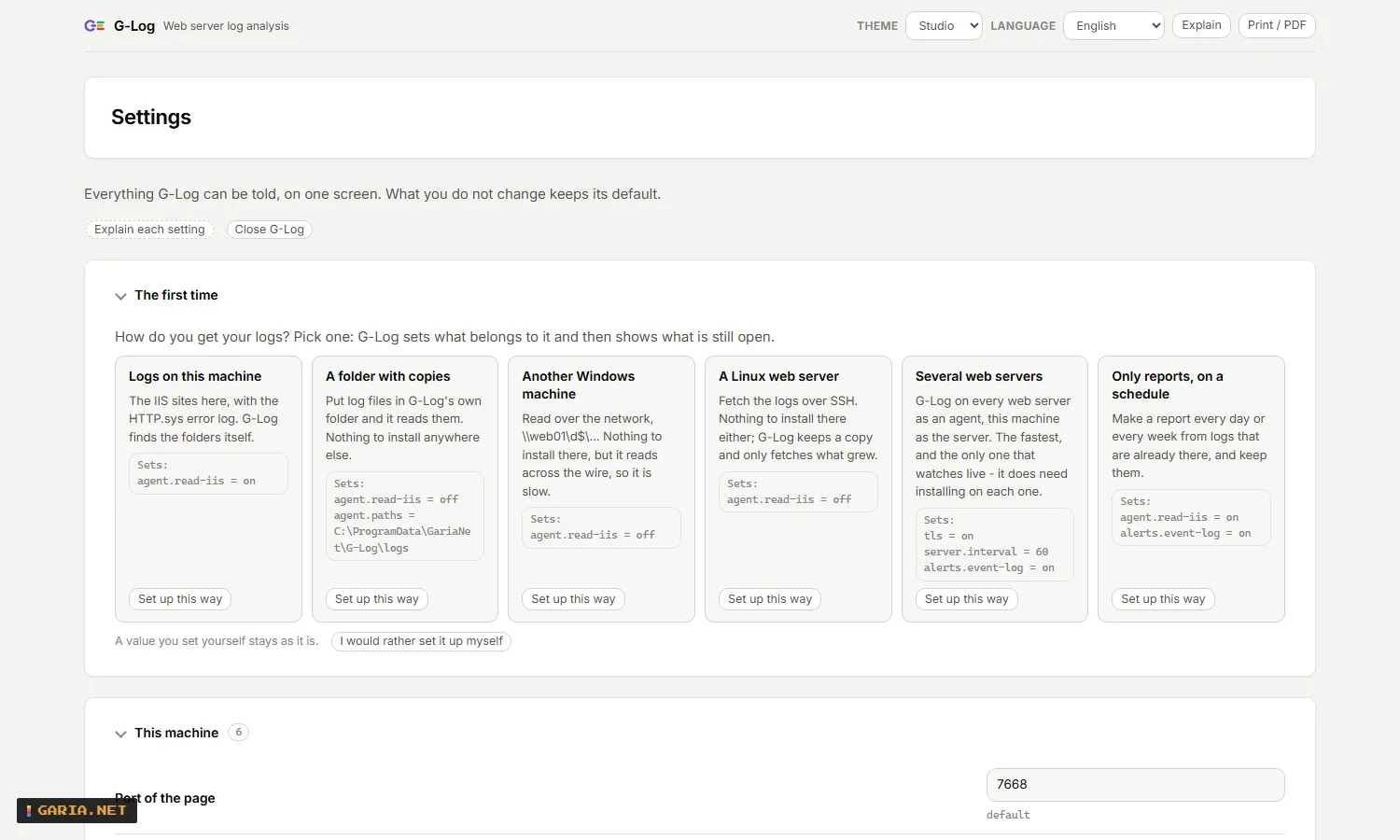
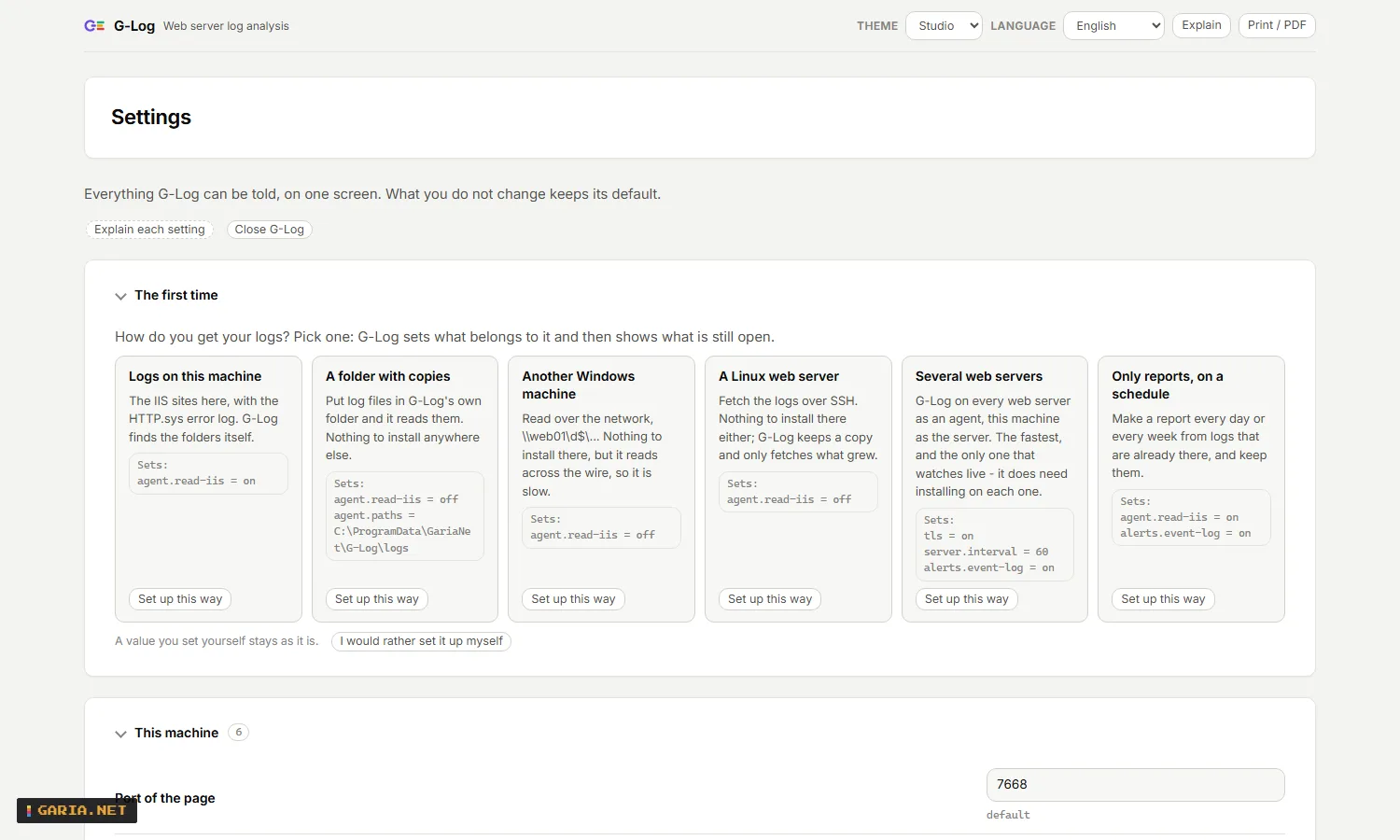
On a machine you have just installed, most of those settings are not yours to worry about. So it asks one question first – not what this machine is, but what you already know: where your logs come from. Answer it and G-Log sets what belongs to that answer, then shows the steps that are still open, checking the machine itself rather than what was ticked.
| Logs on this machine | The IIS sites here, with the HTTP.sys error log. G-Log finds the folders itself. |
| A folder with copies | Put log files in G-Log’s own folder and it reads them. Nothing to install anywhere. |
| Another Windows machine | Read over the network, \\web01\d$\.... Nothing to install there, but it reads across the wire, so it is slow. |
| A Linux web server | Fetch over SSH. Nothing to install there either; only what grew goes over the line. |
| Several web servers | G-Log on each as an agent, this machine as the server. The fastest, and the only one that watches live. |
| Only reports, on a schedule | From logs that are already there. |
Every choice shows what it will set before you pick it, and leaves anything you set yourself alone. And there is a way out: I would rather set it up myself skips the questionnaire without hiding it.
glog --setup                    the question, or - once answered - what is still open
glog --setup cluster            answer it: several web servers, this machine collects
glog --config                   the screen, in your browser
glog --settings                 the whole list, with the defaults
glog --get agent.interval       one value
glog --set agent.interval 30    one value, checked before it is written
glog --set agent.interval       back to the default
glog --try server.agents really contact them, before you save| What it does | Under every setting a line in plain words – what it is for, and what changes when you set it differently. Not a tooltip with the registry name in it. |
| Before you save | A bar that says what was there and what it becomes, per setting, and which of them need the service restarted. Every value is checked first: a port above 65535, a folder that does not exist, a key that is too short. |
| Really try it | The agents of a server, the address of the server and the three places an alert goes can be tried before they are saved. It contacts that agent – does it answer, with which certificate, is the key right – and sends one real test alert. Per agent, so you see which of the five is silent. |
| Never a key in sight | A key can be set but never read back: the screen, the API and --get all answer set. A screenshot in a ticket cannot give a cluster away. |
| Back to the default | Empty a value and the setting is removed, so the default applies again – instead of guessing what it used to be. |
| Rights | Settings live in HKLM, so changing them asks for administrator rights once. Say no and the screen still shows everything, with the command for each line. |
| More than settings | The screen also holds what used to need sc.exe, a file or three commands: the services GLogAgent and GLogServer (install, start, stop, and under which account), pairing a web server with a one-time key, the certificate and its expiry, the reports on a schedule, NinjaOne, the Linux targets read over SSH, and a panel that shows which fields G-Log takes from a log format of your own. |
| Another machine | From a server you can set up one of its web servers without logging on to it. That is off on the other side until someone turns it on (remote-config), and then only over TLS, with every change – and every refusal – in the audit trail. |
| Which version is this | The panel This installation carries the version in its heading and has a button that asks garia.net whether there is a newer one. Only when you ask: G-Log never checks by itself, and the question carries nothing about your machine. |
The installers put G-Log settings in the Start menu for it; SETTINGSUI=0 leaves it out. The screen listens on 127.0.0.1 only and requires a key of its own, so no other program on that machine can use it to write.
Agent and server
One log file is a command away. A cluster is something else: five web servers, three sites each, and the question is which one started failing. G-Log answers that without moving your logs anywhere.
| The agent | Runs on the web server, reads its own logs and sends a summary – a few hundred kilobytes a day instead of gigabytes. The log lines never leave the machine; when the server needs them, it asks for exactly the ones you searched for. |
| The server | Collects those summaries and makes one report per site over every machine. Sites are matched by their name in applicationHost.config, not by W3SVC7, because that number differs per node. |
| Without an agent everywhere | One agent on a jump server can read the log folders of several web servers over their admin share: --agent-path "Shop=\\web01\d$\inetpub\logs\logfiles\W3SVC1". The name in front of the path names the site, so the same site under a different IIS id on each server still becomes one report, with the servers side by side in Per server and site. |
| One page | Alerts, sites and agents on the front screen, and behind its tabs: search the log lines of a site, the reports that were made on schedule, the PCI review, and the settings of that machine. |
| Encrypted | Agent and server speak TLS and recognise each other by the fingerprint of their certificate. Pairing is one command and a one-time key, so the key that opens the whole cluster is never typed on a web server. |
| Linux too | A web server without an agent – nginx or Apache on Linux – is read over SSH, and only the bytes that were added since last time come across. Signing in goes with a key, or with a password when that server takes nothing else: --ssh-password asks for one, --ssh-save-password keeps it with the other keys so a service can use it. |
A server and an agent, in two commands
glog --server --pair-key                     on the collecting server: prints a one-time key
glog --agent --pair <key> --push https://logserver:7788
Both run as a Windows service with --service. The agent reads with one core in background priority and a hard ceiling of ten percent of the processor: the web server comes first.
| Alerts | A site that fails, one that is slower than its own baseline, a server that has gone quiet, logging that stopped. Out through the Windows event log, a webhook, or syslog and CEF to your SIEM – every alert carries a link to exactly the view it is about. |
| Server context | App pool crashes and recycles, deploys, certificates with their expiry date, and what the worker processes were doing – next to the requests, on the same timeline. |
| Reports on a schedule | A daily report at six, a weekly one on Monday, written to a folder or a share, with a retention. Plain JSON to configure, no scheduled task. |
| To your SIEM | An agent can forward the log lines themselves over syslog, raw or as CEF, filtered with the same query language as the search. G-Log delivers to a SIEM; it does not replace one. |
| Within seconds | HTTP.sys writes its buffer once a minute. With --etw an agent reads along over the IIS ETW provider instead, on IIS 8.5 and later. G-Log never changes that IIS setting for you. |
Service account
The services do not have to be LocalSystem
By default GLogServer and GLogAgent run as LocalSystem: it always works, and it can read every file. G-Log only reads, so an account with read access to the log folders is enough – and on a web server that is usually what you want. Choose one with a thing in mind: what an account cannot read is missing from the report, and G-Log says so in chapter 0 rather than leaving it out quietly.
msiexec /i G-Log-1.7.3-x64.msi /qn AGENT=1 SERVICEACCOUNT="DOMAIN\svc-glog" SERVICEPASSWORD="..."The installer first grants that account the right to log on as a service and then creates the service under it. That order matters: sc.exe does not grant the right, and without it the service fails to start with error 1069 – a message that does not say what is wrong. SERVICEPASSWORD is a hidden property, so it does not end up in the installation log.
On an installation that already exists
glog --grant-service-logon "DOMAIN\svc-glog"
sc config GLogAgent obj= "DOMAIN\svc-glog" password= "..."
sc start GLogAgent
A virtual account (NT SERVICE\GLogAgent) needs no password and no right: the service manager arranges both. A gMSA needs the right but no password.
What that account needs, and nothing more
| The log folders | read access. On IIS that is the folder glog --sites shows; on a Linux web server over SSH it is the group adm |
%ProgramData%\GariaNet\G-Log | full access: the keys, the store and the audit trail live there |
| The Windows event log | only if you keep alerts there, which is the default |
applicationHost.config | read access, to find the sites by their name instead of by W3SVC7 |
It does not have to be an administrator and it does not need to log on interactively. LocalSystem is not a superset of you: it reaches other machines as the computer account, so a share you can open yourself may be refused, and its SSH keys live somewhere else. If an agent suddenly reads nothing after a change of account, that is where to look first.
The firewall
An agent and a server listen on the network, so Windows Firewall wants to know about them. The installers add a rule for the private profile when you choose the service (SERVER=1 or AGENT=1), and then nothing is asked. Start one by hand and Windows asks once, with Public networks already ticked – untick that and leave Private on. Only need it on this machine, or on one network card? --bind 127.0.0.1 or --bind 10.0.0.5 keeps it there, and then the question does not come at all.
PCI DSS 10
Requirement 10 of PCI DSS 4.0.1 asks for things a web server log can help with, and for things it cannot. G-Log does the first and says the second out loud.
| 10.4.1 | A review of every day that has passed, written by the server itself: the findings of that day, a status per finding (open, investigated, accepted, resolved) with its history, and a sign-off by name. Nothing is ever overwritten. |
| 10.3.4 | Every log file that is finished gets a SHA-256 the first time it is seen closed. A file that changes afterwards, or disappears, becomes a finding and stays one. |
| 10.2.1.3 | An audit trail of its own: who asked this server for which report, search, export or setting, from which address and with which key. |
| 10.3.3 | Forwarding the log lines to the central, protected place you already have, over syslog or CEF. |
| 10.5.1 | How far the history reaches, against the three months that must be immediately available and the twelve that must be kept. |
| 3.5.1 | Card numbers in URLs are found by their check digit and carry the requirement they belong to. Masking is a choice at install time, not a default. |
What a web server log does not hold: sign-ins to your application, administrator actions, and access to card data per user. Those come from the application and the Windows security log. G-Log is not the central log store an auditor expects either – it forwards to the one you have. It helps an organisation meet requirement 10; it does not make it compliant, and it says so on the page where you sign a day off.
A name is not an account. G-Log has no user accounts – whoever can read the logs can read the data – so what is recorded is the name someone typed and the Windows account the command ran under.
NinjaOne
NinjaOne has no web server log monitoring of its own: its HTTP monitor says from the outside that a site is down. These three scripts say why, from the logs on the server itself. PowerShell 5.1, run as System, every setting a parameter or a script variable.
| GLog-Alert.ps1 | Reads the last 15 minutes. Exit code 1 when there are findings of the chosen severity, and the output is the alert text: requests, error shares, response time, and each finding with what to do. |
| GLog-Report.ps1 | Reads the last 24 hours into custom fields: a summary, requests, server error percentage, p95, the findings, and an HTML report for a WYSIWYG field. |
| GLog-Search.ps1 | The log lines of the last hour that match a query, such as every server error on the payment pages, with an alert when there are any. |
| NinjaOne guide | Which custom fields to create, how to add the scripts, and what the output looks like. |
The scripts were tested under Windows PowerShell 5.1 with a stand-in for NinjaOne’s field command, against generated logs. They have not been run inside NinjaOne itself, and that is said here rather than left out. The same approach works from any RMM, a scheduled task or a runbook.
Or no script at all
A G-Log server can fill the same custom fields over the NinjaOne API, for every web server it collects, so nothing has to run on those machines. It needs an API app of the type Machine to Machine; the client secret is kept with the other keys, in a file only SYSTEM and administrators can read.
glog --ninja-setup --ninja-url https://eu.ninjarmm.com --ninja-client-id <id> --ninja-client-secret <secret>
glog --ninja-fields     shows what would be sent, without sending it
glog --ninja-now        sends it once
Alerting stays a condition in NinjaOne, on one of those fields or on the Windows event G-Log writes. That is not a shortcut: the NinjaOne API cannot raise an alert, and cannot open a ticket without a user context.
JSON, CSV and MCP
Everything the page shows is in one JSON report with a version, the same for the command line and for an AI assistant. The report schema lists every chapter, analysis, reason and advice code.
--format json | the whole report; --with-text adds the English title and what to do to every finding |
--format csv --table <name> | one table for a spreadsheet; --tables lists them. A value that a spreadsheet would read as a formula is made harmless |
--format text | a summary in plain English, for an alert or a ticket |
--fail-on info|warning|critical | exit code 3 when the report has a finding of that severity or worse |
--since 15m, --from, --to | only the lines of that window, in UTC |
An AI assistant on your logs
claude mcp add glog -- "C:\Program Files\GariaNetTools\G-Log\glog.exe" --mcpNine tools over standard input and output: an overview, the findings, ranked lists, a metric over time, what the log contains, what changed between two periods, the log lines themselves, a whole chapter, and what a status or error code means. The server only reads; writing an HTML report needs --allow-write, and then only to a file that does not exist yet. The answers are the same numbers as the page, because they come from the same report.
A G-Log server offers the same tools over HTTP at /mcp, behind its key, so an assistant on a workstation can ask about the whole cluster by site name instead of by path – with nothing installed on that workstation.
API
Everything the page does, from a script
Plain HTTP with JSON, no SDK. Every view in the page is one call, and the numbers are the same ones the report holds – there is no second source. The Postman collection has an example for every call; it also ships in the installation folder under api, next to the report schema.
On this machine the page listens on 127.0.0.1:7668 and asks for no key. A server or an agent on the network listens on 7788 over HTTPS with its own certificate, and every call needs the key of that machine in X-GLog-Token. Start with /api/hello: it says which role you reached, whether a key is required, and the fingerprint of that certificate. Call it over http:// by mistake and you get a 400 that says so, rather than a closed connection.
The report and the requests
GET /api/hello | tool, version, role, whether a key is needed, TLS fingerprint. The only call that never needs a key |
GET /api/report | the whole report as JSON, from path=, paths= or – on a server – site=, with since, from, to and compare |
GET /api/advice | only the findings, most severe first, with the numbers behind them |
GET /api/overview | the five questions and the key numbers |
GET /api/inventory | chapter 0: which files, which fields are logged and which are missing, and what that costs you |
GET /api/search | the matching log lines with file, line number and every field by name; pages with skip and limit |
GET /api/summary | the analysis in G-Log’s compact format – what an agent sends instead of the lines themselves |
GET /api/explain | what a status, substatus, Win32 code or HTTP.sys reason means, and what to check |
The cluster
GET /api/cluster/sites | the sites this server collects, with the machines that run them |
GET /api/agents | per agent: version, mode, last contact, clock difference, last error |
GET /api/alerts | what is firing and what resolved, each with a link to the view it is about |
GET /api/agent/status | on an agent: its sites, its last round, and what it forwarded or received over ETW |
GET /api/agent/summariesGET /api/agent/summary | what an agent has ready, and one summary as bytes |
GET /api/agent/context | app pool crashes, deploys, certificates and worker processes – with a day, or the list of days |
POST /api/pair | trade a one-time key for a key of your own, so the cluster key is never typed on a web server |
POST /api/ingestPOST /api/agent/heartbeatPOST /api/agent/context | the other direction: an agent that sends by itself delivers its summaries, its heartbeat and its context |
Reports, PCI and the machine itself
GET /api/reportsGET /api/reports/file | the schedules with their next run and the files they made, and one of those files |
GET /api/reviewsGET /api/review | the last thirty daily reviews with the retention figures, and one day in full |
POST /api/review | sign a day off, or move one finding to investigated, accepted or resolved |
GET /api/integrity | every sealed log file with its SHA-256 and whether it is still the same file |
GET /api/audit | who asked this server for what, from which address and with which key |
GET /api/settings | version, role, port, TLS, retention and where the files live – never a key |
GET /api/settings/allPUT /api/settings/all | the twenty-four settings themselves, each with its kind, range and default – and writing them, per setting with a reason for each one it refuses |
POST /api/settings/try | really try one: contact those agents, or send one test alert |
GET /metrics | the same numbers in the format Prometheus scrapes |
POST /mcp | the MCP tools over HTTP, for an AI assistant that has nothing installed locally |
One call, from anywhere
curl -H "X-GLog-Token: $key" "https://logserver:7788/api/search?site=Shop&query=status:5xx%20since:1h&limit=20"A question about a site goes to the machines behind it, so the log lines stay on the web server until you ask for exactly those. Each line comes back with the machine it came from.
Changelog
1.7.3 – 24 September 2026
The screen says which version this is, and asks whether there is a newer one
This installation now carries the version in its heading, so it is readable without unfolding the panel, and
has a button Is there a newer version? under it. That was only glog --check-update on the command line.
It asks garia.net only when something asks it to – G-Log never checks by itself – and the question carries
nothing about this machine: no key, no name, no counts. GET /api/update gives the same answer to a script.
1.7.2 – 24 September 2026
It knows where your logs are, so it stops asking
glog --sites has always found the log folders of IIS by itself, but --report and --open still demanded a
path. They no longer do:
glog --report
glog --open
Without a path G-Log reads the folders in agent.paths, and otherwise the IIS sites of this machine with the
HTTP.sys error log next to them. It says which folders it picked. Finds it nothing, it says where it looked
instead of asking again. A path of your own still wins.
The first question is a different one
The questionnaire of 1.5.0 asked what this machine is. It now asks what an administrator actually knows – how do you get your logs – and derives the rest:
| Logs on this machine | the IIS sites here, with the HTTP.sys error log |
| A folder with copies | put log files in G-Log’s own folder (%ProgramData%GariaNetG-Loglogs) and it reads them. Nothing to install anywhere |
| Another Windows machine | read over the network, \web01d$.... Nothing to install there, but it reads across the wire, so it is slow |
| A Linux web server | fetch over SSH, nothing to install there either |
| Several web servers | G-Log on each as an agent, this machine as the server. The fastest, and the only one that watches live |
| Only reports, on a schedule | from logs that are already there |
Each choice brings its own steps, and the step list still looks at the real state rather than at what was ticked. Choosing a folder with copies creates that folder and adds it to the log folders, so there is somewhere to copy to. And there is a way out: I would rather set it up myself skips the questionnaire for good, without hiding it – the question can be asked again at any time.
No black window beside the screen
glog --config starts its elevated half without a window. That console had nothing to say and stayed
there next to the browser; now it does not. Two ways to close what it starts, because a hidden process you can
only reach through Task Manager is not a tool:
glog --stop
and a button Close G-Log at the top of the settings screen. A service is not included – that one stops
through the service manager (glog --service-stop agent|server). If the elevated half cannot start at all, it
says so in a message box rather than writing to a console nobody sees.
glog.exe itself is still a console program, so every script that calls it keeps working exactly as it did.
The desktop shortcut opens G-Log
It opened a command prompt with the help text. It now opens G-Log itself, the way G-Scan’s does. In the MSI it
is still off unless DESKTOPSHORTCUT=1; in setup.exe it is a tick box.
The settings screen is half the height
It was 5700 pixels, more than six screens of scrolling. It is now 2350.
- A setting is one line – name and field – instead of a block of three. The explanation is still there, under the button Explain each setting and in the tooltip of every name.
- Panels fold, and only the ones that belong to this machine’s answer are open. A machine that only reads its own logs does not need the server, the pairing or NinjaOne unfolded.
- The order follows how it is used: the first time, this machine, your role, the rest – and This installation, which is reference rather than a handle, moved to the bottom.
1.6.0 – 24 September 2026
Setting up another machine, and a lock that was missing
From your own workstation, without logging on to every server:
glog --remote web01 --settings
glog --remote web01 --set agent.interval 30
glog --remote web01 --setup
glog --remote web01 --services
It talks to the same API the screen uses, over TLS, with the key of that machine – and it prints what the local
command prints, because both read the same answer. Without --remote-key it uses the key it already has for
that machine, which a server collecting from its web servers does.
On the settings screen a server now shows which machine you are setting up: this one, or one of its web servers. The page never talks to a web server itself – that machine has its own self-signed certificate and its own key, and neither belongs in a browser. The server passes the request on, to a machine it already knows and only for a fixed set of routes.
And the lock. Until now, anyone holding the key of a machine could change its settings from anywhere on the network. A key gives access to the logs, which is what it is for; changing the settings, the services or the certificate of a server is something else. That is now off by default:
glog --set remote-config on
With it off, changes can only be made on the machine itself – where glog --config asks for administrator
rights first. With it on, they are accepted only over TLS, and every one of them lands in the audit trail with
the address it came from. A refused attempt lands there too, with status 403. Reading is unchanged: that is what
the key always gave.
This makes it twenty-four settings, and completes the plan the settings screen started with in 1.2.0.
1.5.0 – 24 September 2026
Everything that used to need a file, sc.exe or three commands
The settings screen (glog --config) grew from the eighteen values it showed in 1.2.0 to everything there is
to set up on a machine. Each part is a command and an API route as well, so nothing here is only reachable with a
mouse.
The first time, G-Log asks one question. Twenty-three settings are a lot on a machine you just installed, and most of them are not yours to worry about:
glog --setup                    the question, or - once answered - what is still open
glog --setup server             this machine collects from several web servers
The four answers are look at this machine, collect from several web servers, this is a web server and only
reports on a schedule. An answer writes the few settings that always belong to that role and leaves anything
already set alone; what each choice writes is printed before you choose it. After that the same command is a
checklist of what is left, and it looks at the real state of the machine – is the service running, is a web server
connected, does a schedule exist – rather than at what was ticked. The screen shows the same list at the top with
a button per open step that jumps to where it is arranged, and GET /api/setup gives it as JSON, so a deployment
script can check afterwards whether a machine is really finished.
Reports on a schedule no longer need reports.json written by hand. One panel per report, with what it is
about, how often, at what time, in which format, where it goes and how many stay, and a button to make one now.
On the command line: glog --report-set, --report-remove; over the API PUT /api/reports and
POST /api/reports/run. Only what is passed changes, the rest of the schedule stays as it was.
Forwarding to a SIEM is a setting, not only a command-line flag. Until now an agent running as a service could
not forward at all – which is what forwarding is for. It is agent.forward (udp://siem:514 or tcp://),
agent.forward-what (the search query) and agent.forward-format (raw or cef), and it can be tried
before it is saved: one test line, sent from its own socket so a running agent is not disturbed.
NinjaOne, SSH targets and a log format of your own each have a panel with a button that really does it: sign
in and report how many machines are ready to update; log in over SSH and report how many log files are there;
show exactly which fields G-Log takes from an nginx log_format or Apache LogFormat on a real log line. A
stored client secret or password reads back as set, never as itself. glog --log-format on a path that does
not exist now says the file is missing instead of saying it does not look like a log format.
The services from the screen. Whether GLogAgent and GLogServer are installed, in which state and under
which account, with install, start, stop and remove:
glog --services
glog --service-install agent --account "DOMAIN\svc-glog" --password "…"
glog --service-start agent
glog --service-remove server
Installing quotes the path itself and grants the account the right Log on as a service – the step sc.exe does
not take, after which a service fails to start with a message that points nowhere. Removing stops the service
first, so it does not sit marked for deletion until a reboot; G-Log never asks you to restart the machine.
Pairing and the certificate. A button makes a one-time pairing key and shows the line to paste on the web server, so no key has to be typed over; the list afterwards shows only the note and when it expires. Next to it: the certificate’s thumbprint, subject and expiry, and make a new one. Reading that does not create a certificate.
Two questions an assistant can now ask about the machine itself, next to the nine that are about a log file:
glog_setup (what is this machine for, and what of that is done) and glog_settings (every setting with the
value that applies). Both read-only; neither returns a key.
Also
- Six settings can be tried before they are saved, rather than five.
- Settings gained four kinds: free text, a choice from a list, a syslog address and a file that has to exist.
glog --setup,--services,--service-*,--accountand--passwordare new on the command line;/api/setup,/api/services,/api/pair/keys,/api/certificate,/api/ssh,/api/ssh/checkand/api/logformatare new in the API and in the Postman collection.
Only visible on a real server
Installing a service, starting one under a domain account, and granting that account the right to log on as a service were written and reviewed but not run here: all three need administrator rights this build was not tested with. The same holds for NinjaOne against a real tenant and for SSH against a real Linux web server. Everything else in this release is covered by the test scripts.
Download
Release 1.7.3
24 Sep 2026 · Windows x64 · no .NET · no VC++ runtime · EN NL FR ES PT
SHA-256 .msi d1ce3cbbf696c0345bc159657723c7a0d27c57fb8aeb8100ef33e75f34ec6a30
SHA-256 .exe d48ef901e2247d45e0205b3e91f02b514f31878c398c313e4f8a99dc176b577e
Words about G-Log
Be civilNo linksOne line, 140 charactersChecked before it appears
No words yet.
G-Speak Encrypted voice chat you host yourself 0.9.0 14.5 MB
Overview
20 ms
steady, from the network to the sound card, measured on one PC
E2E
voice, chat and images; the server forwards but cannot listen in
0
accounts: your identity is a key on your own PC
14.5 MB
G-Speak.exe, the whole app
G-Speak is voice chat you host yourself, for LAN parties and friends, in the spirit of TeamSpeak. One PC runs the server, from the app with one click or as a separate program; everyone else connects with the app or straight from a browser. Version 0.9.0 is the first public release and is coming soon.
| App | G-Speak.exe for Windows: connect, talk, chat, and host a server on this PC. English, Dutch, French, Spanish and Portuguese. |
| Server | gspeak-server on its own, for a PC that only hosts. Channels, password and ports on the command line. |
| Browser | Join from Chrome or Edge with the link the host shows, without installing anything: speak.garia.net. |
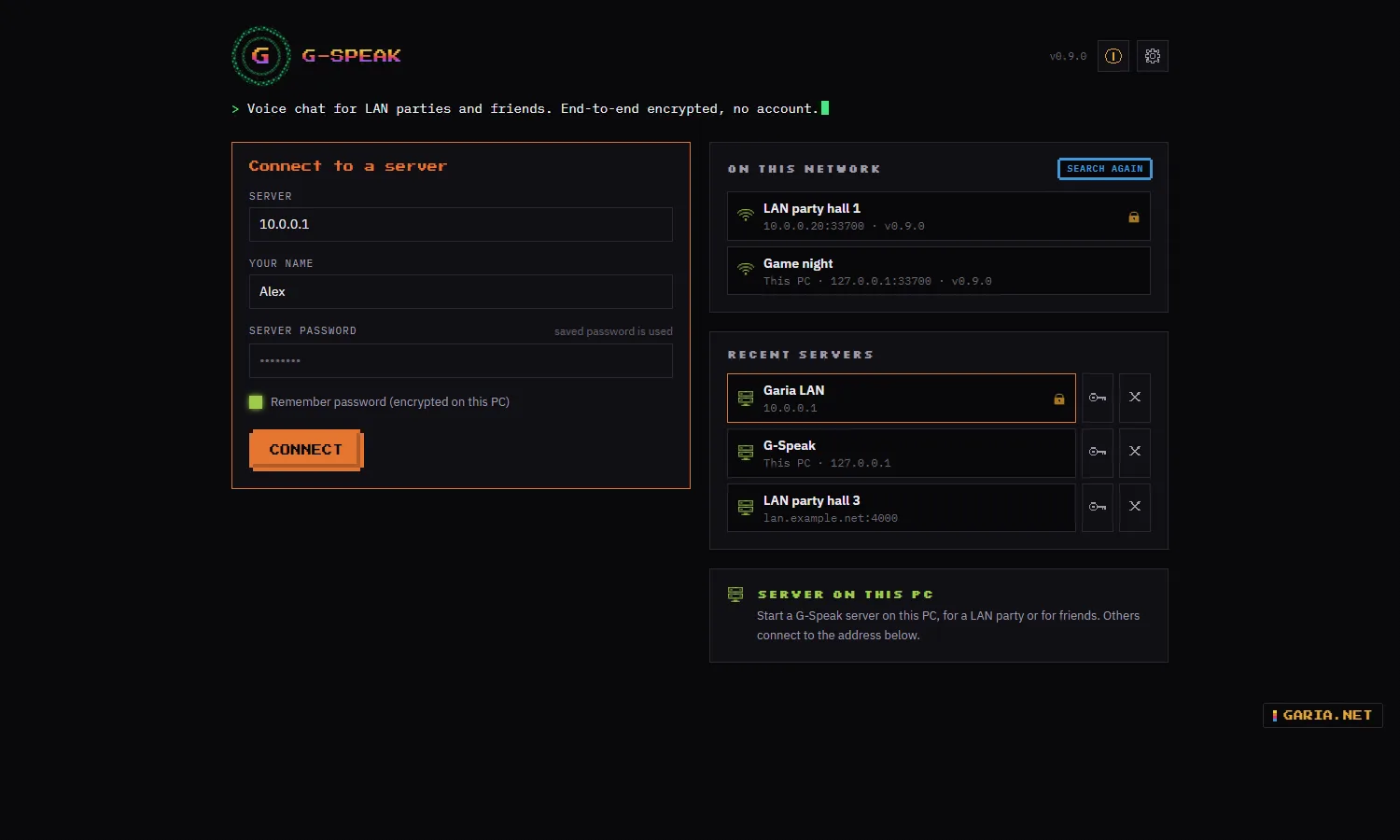
| Network | Servers on your network show up by themselves on the start screen. |
| Deployment | An MSI with real properties: app, server, firewall rule, PATH and a desktop shortcut, each on or off. |
Join with
G-Speak.exe Chrome Edge gspeak-cli
What you get
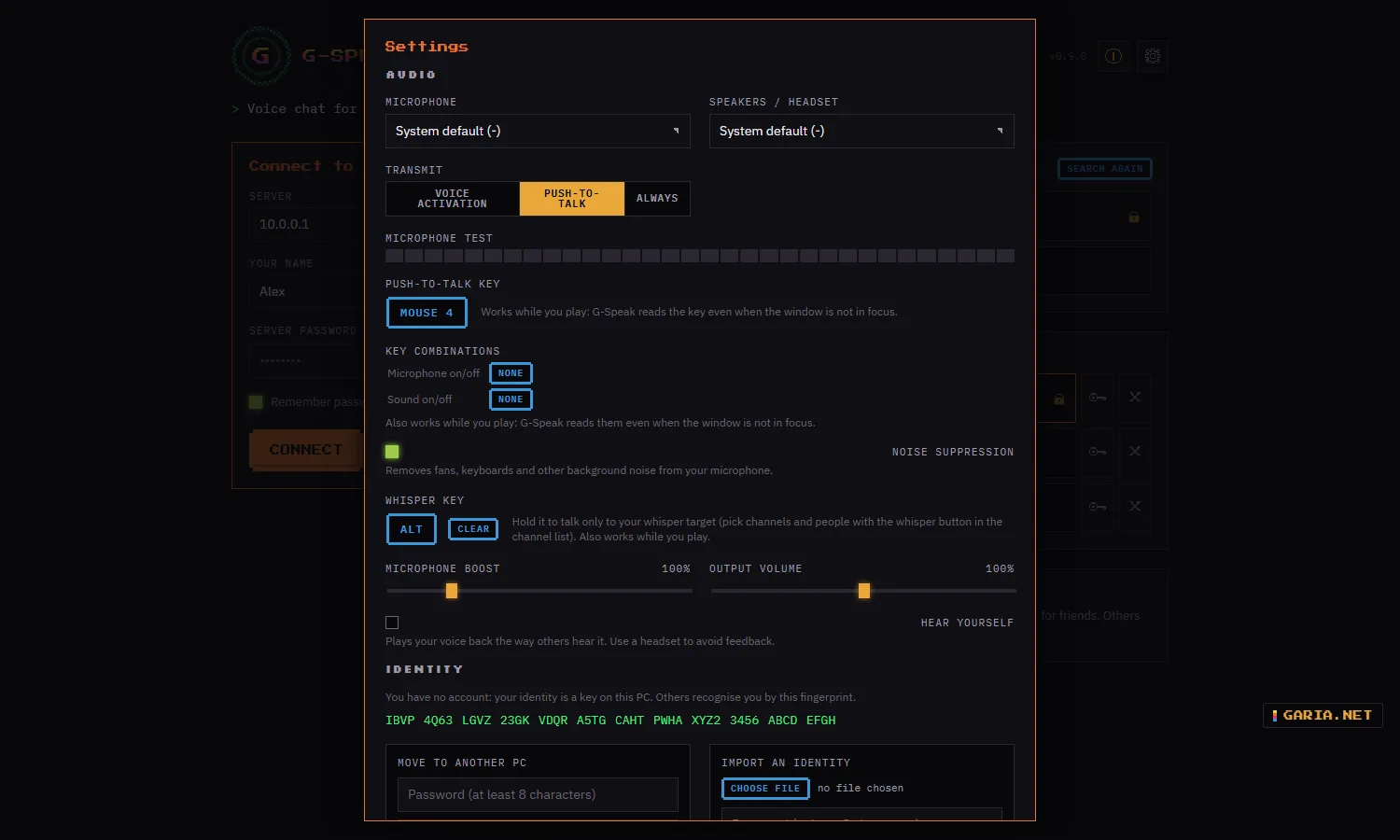
| Push-to-talk | A key or a mouse button that also works while a game has focus. Or voice activation with a level meter and a threshold, or always on. |
| Sound | Pick microphone and headset, noise suppression on the microphone, microphone boost, and a test that lets you hear yourself. |
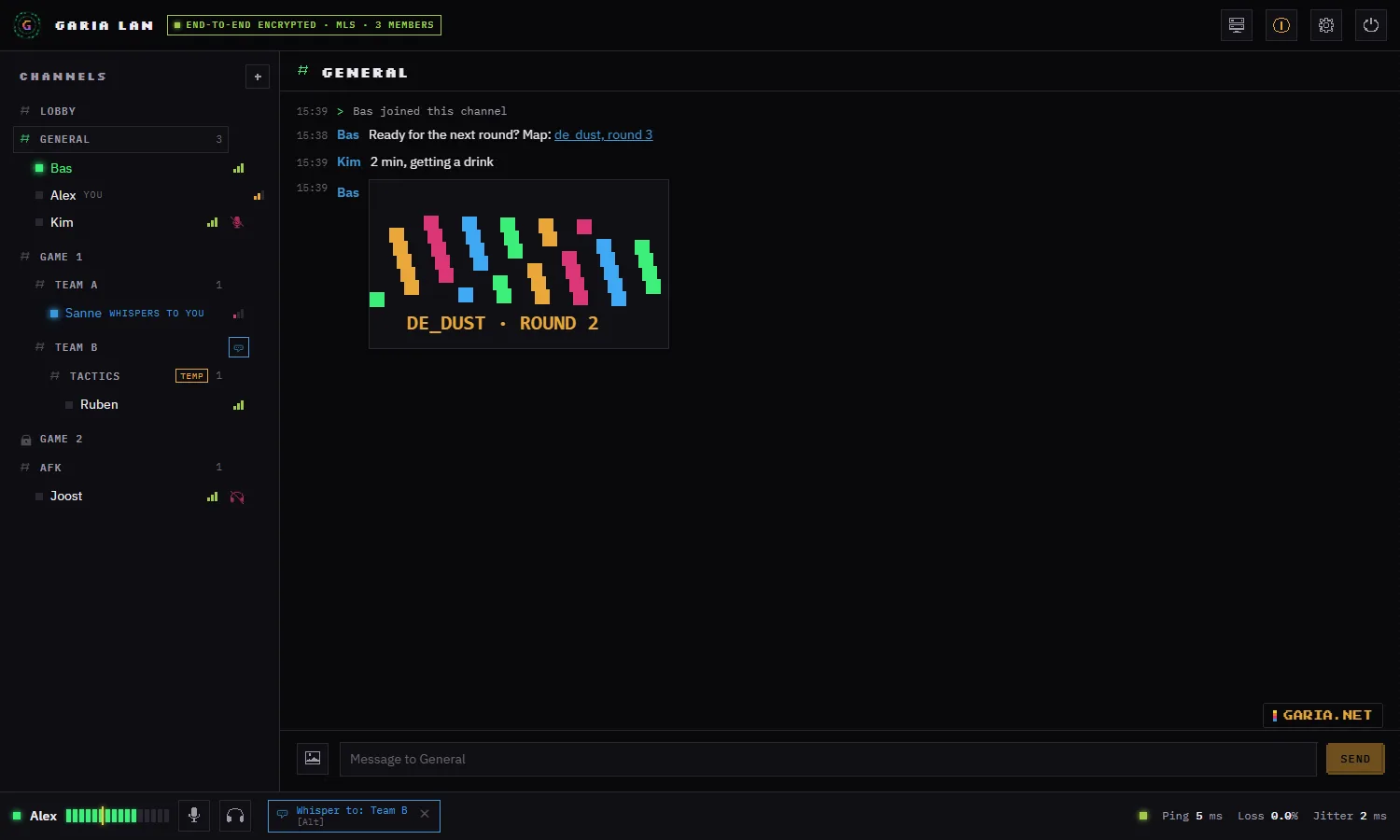
| Channels | Channels and subchannels with who is talking. Temporary channels that disappear when the last person leaves. |
| Whisper | A second key: while you hold it only the channels or people you picked hear you, also in other channels. |
| Chat | Per channel, with clickable links and images (PNG, JPEG, GIF, WebP): pick, paste or drop. |
| People | Volume per person, mute and sound off shown to others, and a connection meter with ping and packet loss for everyone in your channel. |
| Identity | No account. A safety code per person to check nobody is in between, and an encrypted export to take your identity to another PC. |
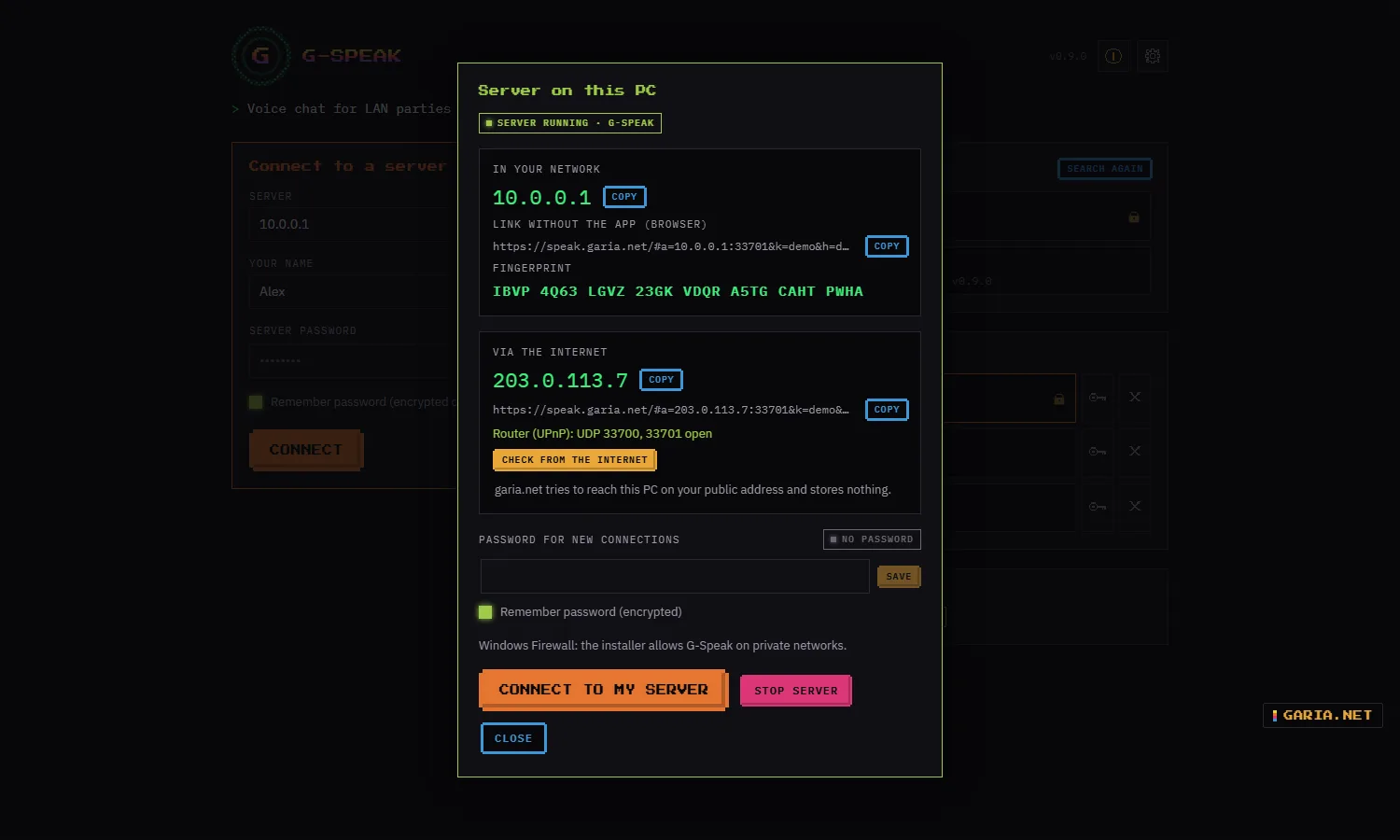
| Host | Server on this PC: a name, channels and a password, and the app shows the address, the fingerprint and the link for browsers. |
Tested on local networks so far. A relay for servers on the internet, so that nobody’s IP address is shown and nothing needs a port opened at home, is planned.
Screenshots
How it works
1. One PC hosts
Start G-Speak and choose Server on this PC. Give it a name, channels (one per line) and a password if you want one, and click Start server. The app shows the address for the others, the server’s fingerprint and a link for browsers. The server stops when you close the app.
2. Everyone connects
The server appears under On this network; double-click it, or type the address. The first time, G-Speak shows the server’s fingerprint: compare it with the host and choose to trust it. If a known server’s key ever changes, G-Speak warns you instead of connecting.
3. Talk
Everyone starts in the Entrance and moves on by double-clicking a channel. The top bar reads End-to-end encrypted · MLS · n members once the keys are agreed. Next time the server is under Recent servers, with the password saved encrypted on the PC if you ticked that.
Set up push-to-talk
The gear at the top right, before or after connecting: Transmit → Push-to-talk, then press the key or the side button of your mouse. With voice activation, set the yellow line so your voice goes over it and background noise stays under it.
Whisper to your team
Set a whisper key in Settings. Pick who you whisper to with the whisper button next to a channel or a name; the bottom bar then reads Whisper to: …. Hold the key and only they hear you. People whispering to you turn blue.
Install (MSI)
Install options
Per-machine, 64-bit, into C:\Program Files\GariaNetTools\G-Speak, with G-Speak and G-Speak server under GariaNetTools in the Start menu. Double-clicked it is a wizard with a choice page; with /qn only the properties count. An older version is updated in place, and a server that was installed stays installed.
The installer is not signed yet, so Windows may warn: choose More info → Run anyway.
msiexec /i G-Speak-0.9.0-x64.msi /qn
msiexec /x G-Speak-0.9.0-x64.msi /qn| Property | Default | Meaning |
|---|---|---|
| INSTALLFOLDER | %ProgramFiles%\GariaNetTools\G-Speak | Install location |
| CLIENT | 1 | The app, G-Speak.exe, also for hosting from the app |
| SERVER | 0 | 1 adds gspeak-server, a server without a window |
| FIREWALL | 1 | Inbound UDP for the app and the server, private networks only |
| ADDTOPATH | 1 | gspeak-cli and gspeak-server in every new command window |
| DESKTOPSHORTCUT | 0 | Shortcut on the desktop |
A PC that only hosts
msiexec /i G-Speak-0.9.0-x64.msi /qn CLIENT=0 SERVER=1 FIREWALL=1| Port | For |
|---|---|
| UDP 33700 | The app (QUIC) |
| UDP 33701 | Browsers (WebTransport) |
| UDP 33702 | Finding servers on the network; private networks only |
Uninstalling removes the firewall rules and the PATH entry. Your identity, settings and known servers stay in %LOCALAPPDATA%\GariaNetTools\G-Speak; remove that folder too for a clean slate.
rmdir /s /q "%LOCALAPPDATA%\GariaNetTools\G-Speak"Host a server
From the app or on its own
Server on this PC in the app is the quick way: it runs while the app is open, and you can change or clear the password while it runs; people already connected stay connected. For a PC that hosts all evening, or one nobody sits at, use gspeak-server. Both use the same server key, so the fingerprint is the same.
A LAN party with teams
gspeak-server --name "LAN party" --channel "Lobby" --channel "Game 1/Team A" --channel "Game 1/Team B"A slash makes a subchannel. The server prints the address clients connect to, the link for browsers and its fingerprint; Ctrl+C stops it.
With a password, kept off the command line
set GSPEAK_PASSWORD=<password>
gspeak-server --name "LAN party"| Option | Default | Meaning |
|---|---|---|
| –name | G-Speak | Name of the server |
| –channel | Algemeen | A channel next to the Entrance; repeat it for more, Game 1/Team A for a subchannel |
| –password | none | Server password; or the environment variable GSPEAK_PASSWORD |
| –bind | 0.0.0.0:33700 | Address and UDP port for the app |
| –web | 0.0.0.0:33701 | Address and UDP port for browsers |
| –no-web | — | No entrance for browsers |
| –no-lan | — | Do not answer when apps search the network |
| –data-dir | — | Folder for the encrypted server key |
Measure the delay through a server
gspeak-cli --measure 60 <server>Sends voice through the server for 60 seconds and reports the delay of the whole chain, without a headset.
Over the internet: port forwarding
On your own network nothing needs setting up. For friends outside your home these ports have to reach the PC that runs the server. Tick Open the ports in my router automatically when you start the server (UPnP, NAT-PMP or PCP; closed again when it stops), or forward them yourself:
| UDP 33700 | The app (G-Speak.exe, gspeak-cli). Required. |
| UDP 33701 | The web client. Only when people join from a browser. |
Both are UDP, not TCP. The Windows firewall rule from the MSI already allows them on a private network. Server on this PC then shows your public address and a browser link to pass on. Check from the internet lets garia.net try to reach your server on your own public address and tells which port to forward if it fails; nothing is stored. Behind provider NAT (CGNAT) no port can be opened; a relay that needs no open port at all is planned.
Web client
Join from a browser
For a phone, a borrowed laptop or a friend who does not want to install anything. The host copies Link without the app (browser) from Server on this PC, or from the window of gspeak-server, and shares it. The link opens the web client at speak.garia.net in Chrome or Edge; enter a name and connect. Chat, voice, images and whispering work as in the app, and the server key is checked and remembered the same way.
The server’s address and key travel in the part of the link after #, which a browser never sends to the website: garia.net serves the page, the voice goes straight to your server. If the browser asks for access to your local network, allow it. The link changes every week, with the server’s certificate; copy it again then.
Security
Even the server cannot listen in
Whoever runs the server, or listens on the network, cannot hear the voice or read the chat. G-Speak uses proven, published standards and libraries for this, no home-made cryptography.
| Layer | How |
|---|---|
| Connection | TLS 1.3 only, with the hybrid post-quantum key exchange X25519MLKEM768 |
| Channel keys | MLS (RFC 9420): a group per channel, with new keys when someone joins or leaves |
| Voice | SFrame (RFC 9605): every voice frame encrypted end-to-end |
| Chat and images | End-to-end encrypted with the channel keys; whispering has its own group |
| Identity | An Ed25519 key per user and per server. Fingerprint on first connect, a warning when a known server’s key changes, and a safety code per person |
| On the PC | Identity, server key and saved passwords encrypted with Windows DPAPI; server passwords hashed with Argon2id |
What else keeps it safe
The chat carries text, links and images only. Images are redrawn before they are sent, which drops hidden content and metadata such as a GPS location, and the receiver checks them again. Answers to a network search are signed with the server key and only go to private networks. Nightly fuzz tests feed malformed data to everything that reads from the network or from files.
No account, no ads, no data collection. G-Speak only asks garia.net for the latest version when you click Check for updates in Credits.
Changelog
0.9.0 – coming soon
Added
- Host over the internet: "Server on this PC" shows the address for your network and for the internet, each with a browser link. Optionally the app opens the ports in your router itself (UPnP, NAT-PMP or PCP) and closes them when the server stops; it warns about double NAT or provider NAT.
- "Check from the internet": garia.net tries to reach your server on your public address and says which UDP ports to forward if it fails. Nothing is stored.
- Optional own host name (dynamic DNS) for the links when your public address changes.
- French, Spanish and Portuguese, the same languages as G-Scan and G-Log. Pick one in Settings; the web client follows the browser language.
Changed
- The top left shows "This PC" instead of 127.0.0.1 when you are on your own server.
- Error details, server messages and the output of
gspeak-serverandgspeak-cliare in English. The first channel is called Lobby and is shown in your own language in the app. - New servers start with the channel General instead of Algemeen.
Fixed
- Pasting a screenshot (Print Screen, Win+Shift+S) into the chat did nothing in the app. Large screenshots are scaled down before sending, in the app and in the browser.
0.1.0-alpha.8 – 23 October 2026
Added
- Web client: join from a browser without installing anything, at https://speak.garia.net/. "Host a server on this PC" and
gspeak-servershow the link to share; the server address and key travel in the part after#, which never reaches the website. Chat, voice, images and whispering work as in the app; the server key is checked and remembered the same way. - The server accepts connections from web browsers (WebTransport on UDP 33701). Use
--no-webto switch it off. - Find servers on your network: the start screen lists the G-Speak servers on the LAN, with name, version and whether a password is needed. Servers answer on UDP 33702 (private networks only, signed with the server key); use
--no-lanto switch it off.
Changed
- Lower and steadier voice delay: playback now follows the clock of the sound card instead of a timer. Measured on one PC: a steady 20 ms from the network to the sound card, without the timer spikes of up to 30 ms. If the PC is busy and the sound would stutter, the buffer grows a little by itself.
Fixed
- The G-Speak server shortcut and
gspeak-serverhad no icon in the Start menu and taskbar; the server window now also shows its version. - Going back to a channel right after leaving it could fail to set up encryption.
- Removing a server from the recent list did not forget its key, so a reinstalled server kept showing "server key changed".
0.1.0-alpha.7 – 21 October 2026
Added
- Temporary channels and subchannels: create one from the channel list and you go straight in; it disappears when the last person leaves. Fixed subchannels can be set on the server as
Game 1/Team A. - Connection meter per person: ping and packet loss of everyone in your channel, measured by the server.
- Safety code per person: click a name to compare a code with them; the same code on both sides means nobody is in between.
- Move your identity to another PC: export it as a password-encrypted file and import it there. The previous identity is kept as a backup.
- Whisper: set a whisper key and pick channels or people with the whisper button in the channel list; while you hold the key only they hear you, also in other channels. End-to-end encrypted with its own group; people whispering to you are shown in blue.
- Images in the chat (PNG, JPEG, GIF, WebP): pick, paste or drop. Images are redrawn without metadata such as location, encrypted end-to-end and checked again by the receiver.
- Noise suppression on the microphone (on by default, can be switched off in Settings).
- Nightly fuzz tests for everything that reads data from the network or from files.
Download
Release 0.9.0
Windows x64 · browser: Chrome or Edge · EN NL FR ES PT
Words about G-Speak
Be civilNo linksOne line, 140 charactersChecked before it appears
No words yet.